Backup-UserData To External Drive
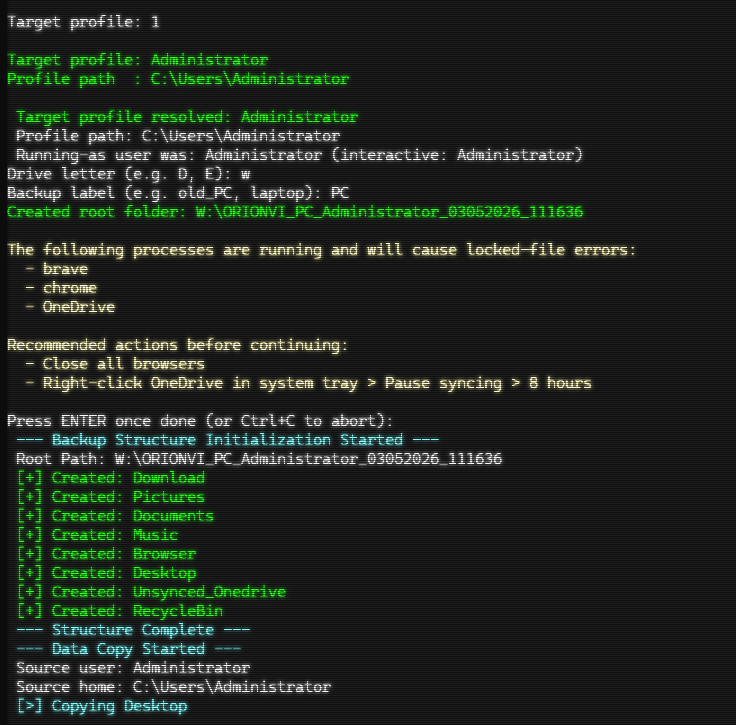
PowerShell-driven data preservation for pre-reimage and pre-swap technician workflows. Designed to run from a high-speed NVMe USB drive plugged into a live target machine, prompts the operator for the destination drive and a label, resolves the correct user profile (handling the elevation-mismatch trap), and then captures everything that matters into a self-documenting folder structure with per-source logs.
This is the lightweight counterpart to the multi-profile Backup-UserData.ps1. Where the full script captures every profile on disk for a forensic-style sweep, this one captures one operator-selected profile fast — pairing cleanly with TransWiz or USMT for the actual profile state migration.
What It Does
The script captures, for one user, into a labelled folder on an external drive:
- Standard folders — Desktop, Documents, Downloads, Pictures, Music
- Browser data — Edge, Chrome, Brave, Firefox (cache directories excluded)
- OneDrive sync roots — every
OneDrive*folder, with cloud-only placeholders skipped (/XA:O) - Sage data —
C:\ProgramData\Sage\Accounts,Documents\Sage,Public Documents\Sage - Recycle Bin — per fixed drive, with post-copy attribute cleanup so the destination is browsable in Explorer
Each source gets its own per-source .log file alongside its destination folder, plus a unified Backup_Log.txt at the run root.
Why It Exists
There is a long-running gap in the standard MSP migration workflow. Vendor tools like ForensiT TransWiz handle profile state migration well — Outlook profiles, signatures, app config, the lived-in feel of a desktop — but they cannot help when the source machine is dead, when the technician needs a quick offline data snapshot before a reimage, or when the workflow involves swapping a disk. They also cannot capture Recycle Bin contents in any usable form.
This script fills that gap. It runs unattended in seconds-to-minutes (depending on data volume), produces plain folders any future tool can consume, and writes everything to a single drive the technician can take away.
How to Use
The intended workflow is plug-in-and-run on a live target machine.
- Plug the external NVMe drive into the target machine.
- Open PowerShell as Administrator. Admin is recommended (not strictly required) — it enables Robocopy
/Bfor locked-file handling and lets the script read other users’ profiles when elevated from a different account. - Run the script:
.\Backup-UserData-Simple.ps1
- The script displays profile detection results and lists every valid profile under
C:\Users\. The detected default is marked with an asterisk. Press ENTER to accept the default, type a number to pick a profile from the list, or type a username directly:
Profile detection:
  Running as          : Administrator
  Interactive console : Andrew

Available profiles on this machine:
  [1]  Administrator
  [2]* Andrew
  [3]  Andre
  (* = detected default. Press ENTER to accept, or enter a number / username)

Target profile:
- Enter the destination drive letter when prompted (e.g.
W). - Enter a backup label — this becomes part of the folder name. Examples:
old_PC,pre_reimage,migration,swap_to_new_laptop. - If running browsers or OneDrive are detected the script lists them and pauses. Close all browsers and pause OneDrive sync (right-click tray icon → Pause syncing → 8 hours), then press ENTER. This is the single most important step for a clean run — locked browser databases and active OneDrive sync are the two biggest causes of
Exit=9errors. - Wait for completion. Run time is typically seconds to a few minutes depending on data volume; a 50 GB profile on USB 3.2 NVMe completes in under three minutes.
- Review
<Drive>:\<HOSTNAME>_<label>_<TargetUser>_<DDMMYYYY_HHmmss>\Backup_Log.txtfor the run summary.
Video Walkthrough
A short demonstration of the script in action — profile detection, destination selection, and a sample run on a multi-user test machine.
Output Structure
The destination folder is named <HOSTNAME>_<label>_<TargetUser>_<DDMMYYYY>_<HHmmss> so it is self-documenting at a glance. Multiple runs produce separate folders rather than merging.
W:\ORIONVI_PC_Andrew_03052026_142315\
  Backup_Log.txt
  Desktop\
  Documents\
  Download\
  Pictures\
  Music\
  Browser\
    Edge\
    Chrome\
    Brave\
    Firefox\
  Unsynced_Onedrive\
    OneDrive\
    OneDrive - Tenant Name\
  Sage\                      (only present if Sage data found)
  RecycleBin\
    C\
    D\
    ...
NVMe Tuning
Robocopy options are tuned for high-speed external destinations, not generic mechanical drives:
| Flag | Purpose |
|---|---|
| /MT:32 | 32 concurrent copy threads — saturates an NVMe USB-attached drive without diminishing returns |
| /J | Unbuffered I/O — bypasses the OS file cache, which is the right call for one-time-read backup of large files (PSTs, video, OneDrive caches) onto fast media |
| /COPY:DAT | Data, attributes, timestamps. ACLs deliberately not copied (destination is typically a different user context) |
| /XJ | Skip junction points — avoids reparse-loop edge cases in OneDrive folders |
| /R:2 /W:5 | Retry twice with 5-second wait — fast retry without lengthy hangs |
Source-specific extras include /B (backup mode for locked-file handling), /XD excludes for browser caches (Cache, GPUCache, Crashpad, ShaderCache, GrShaderCache), /XA:O for OneDrive cloud-only placeholders, and /A-:SH plus a post-copy attribute cleanup pass for Recycle Bin destinations.
Key Design Decisions
Single-user, technician-driven. The script captures one operator-selected profile per run. For multi-profile sweeps see the multi-profile Backup-UserData.ps1. Single-user keeps the prompt flow short and the output predictable.
Always-prompt profile selection. Every run lists every valid profile under C:\Users\ (filtered by NTUSER.DAT presence to exclude junk folders) and asks the operator to confirm. The detected default is highlighted, so accepting it is one keystroke. This deliberately inserts friction: it prevents the elevation-mismatch trap where the script silently captures the wrong user when a technician elevates from a standard user account.
Self-documenting folder names. The destination root includes hostname, technician-supplied label, target username, and timestamp. Three months later it’s still obvious which run is which without opening a log file.
Pre-flight process check with mandatory pause. The script detects running browsers and OneDrive at start and pauses with a Read-Host. The operator must close browsers and pause OneDrive before pressing ENTER. This is the single biggest difference between a clean run and a noisy one.
Recycle Bin attribute cleanup. Robocopy’s /A-:SH only acts on files; the source $Recycle.Bin folder hierarchy is system+hidden, and the destination directories inherit those attributes. A post-copy pass strips them so the captured Recycle Bin is browsable in Explorer without enabling “Show hidden files”.
Destination drive guard. The Recycle Bin loop derives the destination drive letter from the run path and skips it. Without this, the script would attempt to copy the destination drive’s $Recycle.Bin into itself.
Limitations and Trade-offs
| Limitation | Note |
|---|---|
| Recycle Bin contents not directly restorable | Stored as raw $I*/$R* pairs grouped by SID. A parser tool is required to map them back to original filenames |
| OneDrive cloud-only files not captured | Pin them locally with “Always keep on this device” before running, or rely on cloud sync to a new device |
| Browser passwords are DPAPI-encrypted | Will not decrypt offline without the user’s AppData\Roaming\Microsoft\Protect master keys (deliberately not captured here). Account-sync on the new device is the reliable path |
| Single user only | For multi-profile capture, use the full Backup-UserData.ps1 |
| No file count or hash verification | Robocopy exit codes are the only integrity signal |
| Sage paths are best-guess defaults | Sage 50, Sage 200, Sage Payroll, and customised installs may store data elsewhere. Edit $SageSources for site-specific paths |
| Browser App-Bound Encryption | Newer Chromium versions add a service-bound encryption layer on top of DPAPI for cookies and (Chrome 132+) passwords. Limits offline-decryption usefulness on modern installs |
When to Reach for Which Tool
| Scenario | Tool |
|---|---|
| Pre-reimage of a working machine, single user, technician at the keyboard | This script |
| TransWiz/USMT will handle profile state, this is just data preservation | This script |
| Sage data needs grabbing | This script (only one with Sage paths) |
| Multiple users on the machine all need backing up | Backup-UserData.ps1 (multi-profile) |
| Machine is dead, drive removed and slaved to a working host | Backup-UserData.ps1 with -SourceRoot D:\ |
| Forensic capture for legal hold | Backup-UserData.ps1 (DPAPI keys, file count verification) |
| User getting a fresh laptop, wants full environment back | TransWiz or USMT primary, this script as belt-and-braces |
The script is deliberately not a TransWiz replacement. It is a layer below — the safety net that means the user’s data is preserved even when the migration tool fails or is not applicable.
References
- Robocopy command-line reference: https://learn.microsoft.com/en-us/windows-server/administration/windows-commands/robocopy
- Robocopy exit codes: https://learn.microsoft.com/en-us/troubleshoot/windows-server/backup-and-storage/return-codes-used-robocopy-utility
- Win32_ComputerSystem class (
UserNameproperty): https://learn.microsoft.com/en-us/windows/win32/cimwin32prov/win32-computersystem - Win32_LogicalDisk DriveType values: https://learn.microsoft.com/en-us/windows/win32/cimwin32prov/win32-logicaldisk
- About environment variables in PowerShell: https://learn.microsoft.com/en-us/powershell/module/microsoft.powershell.core/about/about_environment_variables
- User Account Control overview: https://learn.microsoft.com/en-us/windows/security/application-security/application-control/user-account-control/how-it-works
- OneDrive Files On-Demand: https://support.microsoft.com/en-us/office/save-disk-space-with-onedrive-files-on-demand-for-windows-0e6860d3-d9f3-4971-b321-7092438fb38e
- Chromium User Data directory: https://chromium.googlesource.com/chromium/src/+/HEAD/docs/user_data_dir.md
- Mozilla Firefox profile contents: https://support.mozilla.org/en-US/kb/profiles-where-firefox-stores-user-data
- ForensiT TransWiz: https://www.forensit.com/user-profile-transfer-wizard.html
- Microsoft USMT overview: https://learn.microsoft.com/en-us/windows/deployment/usmt/usmt-overview