Intune Win32 Bulk Packaging Tool
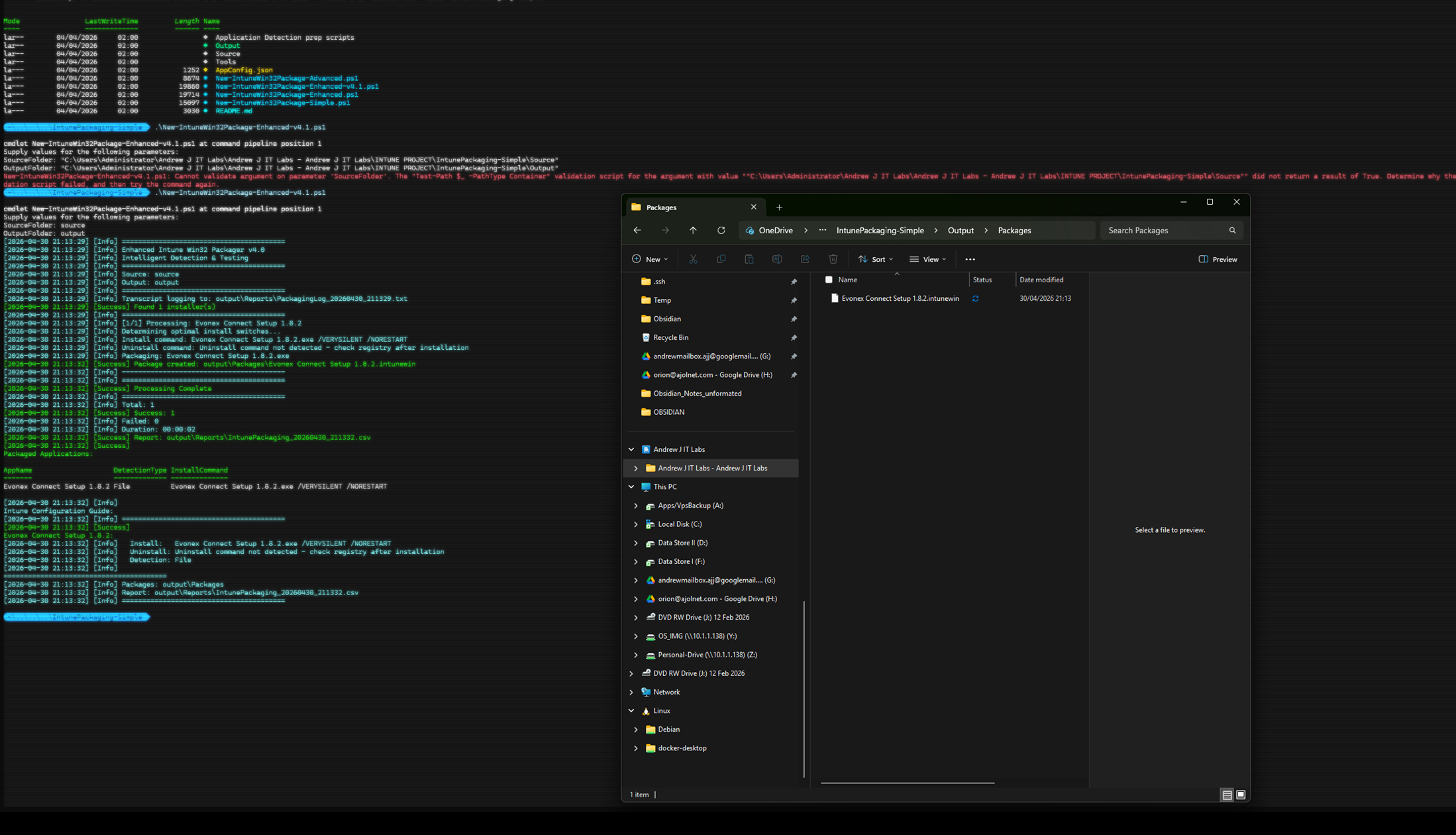
Public Repo: git@github.com:StoicTurk182/Intune-Win32-App-Install-Auotmation.git
PowerShell pipeline that wraps Microsoft’s Win32 Content Prep Tool to bulk-package EXE/MSI installers into .intunewin packages, with auto-resolved silent switches, MSI product codes, and registry detection rules. Output is a CSV that maps one-to-one with the Intune admin centre’s “Add Win32 app” fields.
The real feature with this approach is using a HKLM script to detect the correct install settings for the application to make it easier to use with Intune. Using string comparison as a primary detection method. I have found this method to be very reliable.
Problem
IntuneWinAppUtil.exe only produces the .intunewin package. It does not extract MSI product codes, infer silent switches, or build detection rules — all of which still have to be entered by hand for every app. For a 30-app onboarding, that’s hours of manual work and dozens of chances to typo a product code.
What the Tool Does
Six stages, one command:
- Discover EXE/MSI installers in a source folder.
- Extract MSI metadata (
ProductCode,ProductName,ProductVersion,Manufacturer) via theWindowsInstaller.InstallerCOM object. - Resolve silent install switches against a known framework list (Inno Setup, NSIS, InstallShield, MSI, generic).
- Discover registry detection rules from
HKLM\...\Uninstall\*(both native andWOW6432Node). - Package via
IntuneWinAppUtil.exe -q. - Emit a CSV with every field needed for Intune configuration.
Silent Switch Resolution
EXE installers use different silent switches depending on the framework. The script tries them in order:
$switchSets = @{
    '.exe' = @(
        @('/VERYSILENT', '/NORESTART'),    # Inno Setup
        @('/S'),                           # NSIS
        @('/silent', '/norestart'),        # InstallShield
        @('/q', '/norestart')              # Generic
    )
    '.msi' = @(@('/i', '/qn', '/norestart'))
}
With -TestInstalls, each combination is actually run on the host and the first one returning exit code 0 or 3010 wins. Without it, the script falls back to /VERYSILENT /NORESTART.
MSI Detection
ProductCode is read directly from the MSI property table — no Orca, no WiX dependency:
$WindowsInstaller = New-Object -ComObject WindowsInstaller.Installer
$Database = $WindowsInstaller.GetType().InvokeMember(
    "OpenDatabase", "InvokeMethod", $null, $WindowsInstaller, @($MsiPath, 0))
The ProductCode goes straight into Intune’s MSI detection rule.
EXE Detection
For EXE installers there’s no embedded metadata. The script walks the uninstall registry hives looking for a DisplayName that matches the installer filename:
$UninstallPaths = @(
    "HKLM:\SOFTWARE\Microsoft\Windows\CurrentVersion\Uninstall\*",
    "HKLM:\SOFTWARE\WOW6432Node\Microsoft\Windows\CurrentVersion\Uninstall\*"
)
A WOW6432Node match flags the app as Is32BitApp = Yes, which Intune requires for 32-bit apps on 64-bit Windows.
Version Progression
| Version | Change | Reason |
|---|---|---|
| v3.0 Simple | Direct execution, no detection logic | Speed, when apps are pre-documented |
| v4.0 Enhanced | MSI extraction, switch testing, registry discovery | Default mode |
| v4.1 | Renamed $args (PowerShell reserved automatic variable), fixed registry path construction, added Start-Transcript | Bug fixes |
| v4.1 Advanced | Explicit Marshal.ReleaseComObject cleanup, post-install registry delta capture, SupportsShouldProcess | COM file locks, DisplayName mismatch handling |
The post-install delta capture in v4.1 Advanced solves a real problem: an installer named 7z2301-x64.exe registers as DisplayName 7-Zip 23.01 (x64) — substring matching fails, so the script captures the registry delta after install instead of searching by name.
Usage
# Pure inference mode
.\New-IntuneWin32Package-Enhanced-v4_1.ps1 `
    -SourceFolder "C:\Apps" `
    -OutputFolder "C:\Packages"

# With install testing (Admin, disposable VM only)
.\New-IntuneWin32Package-Enhanced-v4_1.ps1 `
    -SourceFolder "C:\Apps" `
    -OutputFolder "C:\Packages" `
    -TestInstalls
Output
OutputFolder/
├── Packages/
│   ├── 7-Zip.intunewin
│   ├── GoogleChrome.intunewin
│   └── AdobeReader.intunewin
└── Reports/
    ├── IntunePackaging_yyyyMMdd_HHmmss.csv
    └── PackagingLog_yyyyMMdd_HHmmss.txt
CSV columns map directly to the Intune admin centre fields: InstallCommand, UninstallCommand, DetectionType (MSI/Registry/File), MSIProductCode, RegistryKeyPath, RegistryValueName, RegistryOperator, RegistryValue, Is32BitApp. No fields typed by hand — paste from CSV into Intune.
Limitations
- Bundle installers (Adobe Acrobat DC, Office Deployment Tool) need a custom wrapper script — a single silent switch can’t orchestrate multi-step installs.
-TestInstallsis destructive. Run on a snapshot-restorable VM only.- DisplayName substring matching is fragile (see 7-Zip example above) — the v4.1 Advanced post-install delta capture is the recommended mode.
- No code signing of
.intunewinoutput. The Win32 Content Prep Tool encrypts but does not sign.
Future Work
- Apply
AppConfig.jsonoverrides in v4.1 Enhanced (currently only honoured by v3.0 Simple). - Direct upload to Intune via Microsoft Graph (
/deviceAppManagement/mobileApps). - Generate PowerShell detection scripts for apps that don’t fit MSI/Registry/File detection cleanly.
- Parallelise the packaging loop (
ForEach-Object -Parallelon PowerShell 7+).