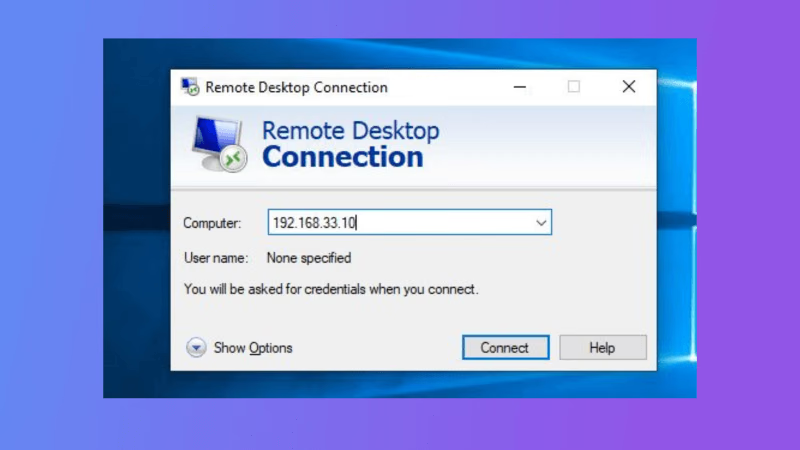
A standard RDP connection to a Windows client locks the logged-on user out, because desktop Windows allows only one active session. Shadowing attaches to the user’s existing session instead: they stay signed in and watch, or you take control. This is the helpdesk-friendly way to see what someone is doing without kicking them off.
Tested on Windows 10/11 Pro and Enterprise. Home editions have no Remote Desktop and cannot be shadowed.
One-Time Target Setup
Run elevated on the target, or push via RMM/GPO. Shadow = 2 is full control with no consent prompt (use 1 on client machines so the user is asked first).
# Shadow policy: 2 = full control, no consent prompt
$p = 'HKLM:\SOFTWARE\Policies\Microsoft\Windows NT\Terminal Services'
if (-not (Test-Path $p)) { New-Item -Path $p | Out-Null }
Set-ItemProperty $p Shadow -Value 2 -Type DWord

# Remote Desktop + firewall
Set-ItemProperty 'HKLM:\System\CurrentControlSet\Control\Terminal Server' fDenyTSConnections 0
Enable-NetFirewallRule -DisplayGroup "Remote Desktop"
Enable-NetFirewallRule -DisplayName "Remote Desktop - Shadow (TCP-In)"
Enable-NetFirewallRule -DisplayName "File and Printer Sharing (SMB-In)"
Shadowing does not use the RDP port. It runs over SMB/RPC: TCP 139, 445 and the dynamic range 49152-65535. Any firewall between you and the target must allow these.
The account you connect with must be a local administrator that receives a full remote token. On a workgroup target that means the built-in Administrator (RID 500), or any local admin with LocalAccountTokenFilterPolicy = 1.
Store the Credential (No Password Prompt)
On your workstation, as your normal user. This is the shadow/qwinsta credential (SMB):
cmdkey /add:TARGET /user:TARGET\Administrator /pass
/pass with no value prompts for the password. The stored credential only matches the exact string you later pass to /v:, so pick one target string (hostname, FQDN or IP) and use it everywhere.
Connect
Always check the session state first, then shadow the right ID.
qwinsta /server:TARGET
 SESSIONNAME   USERNAME        ID  STATE   TYPE
 console       Administrator    1  Active
Shadow that ID:
mstsc /v:TARGET /shadow:1 /control /noConsentPrompt
Drop /control for view-only. Drop /noConsentPrompt (and set Shadow = 1) if you want the user asked first. Never append a port to /v: — shadowing ignores 3389 and /v:TARGET:3389 throws “This computer name is invalid”.
After a Restart: Check the Session State
The configuration survives a reboot. The user’s session does not. Straight after a restart qwinsta shows the console at the logon screen:
 console                        1  Conn    <- logon screen, nobody signed in
               Administrator    2  Disc    <- disconnected session
Shadowing needs an active session to mirror, so /shadow:1 here fails with “session not available”. Session IDs are also reassigned on reboot, so never hard-code /shadow:1.
| qwinsta shows | What to do |
|---|---|
console + user, Active | Shadow that ID |
console, no user, Conn | Normal RDP (mstsc /v:TARGET) — nobody’s screen is locked |
Your user, Disc | Normal RDP as that user reconnects the session |
Error [5]: Access is denied | cmdkey target string does not match — see below |
The Credential Gotcha: Shadow vs Normal RDP
These use different stored credentials. One is ignored by the other, which is the usual cause of unexpected prompts.
| Connection | Credential type | cmdkey syntax |
|---|---|---|
mstsc /shadow, qwinsta | Domain Password | cmdkey /add:TARGET |
Normal RDP (mstsc /v:) | Generic (TERMSRV) | cmdkey /generic:TERMSRV/TARGET |
If normal RDP keeps prompting even with the TERMSRV credential stored, the cause on a workgroup target is credential delegation: Windows will not delegate a saved password to a host it cannot authenticate with Kerberos. Enable NTLM-only delegation on the client:
reg add "HKLM\SOFTWARE\Policies\Microsoft\Windows\CredentialsDelegation" /v AllowSavedCredentialsWhenNTLMOnly /t REG_DWORD /d 1 /f
reg add "HKLM\SOFTWARE\Policies\Microsoft\Windows\CredentialsDelegation\AllowSavedCredentialsWhenNTLMOnly" /v 1 /t REG_SZ /d "TERMSRV/*" /f
gpupdate /force
Over Tailscale
The Tailscale IP (in the 100.64.0.0/10 range) does not change when the LAN address does, so it is the most stable target string. Store the credential against it and connect to it:
cmdkey /add:100.x.y.z /user:TARGET\Administrator /pass
qwinsta /server:100.x.y.z
mstsc /v:100.x.y.z /shadow:1 /control /noConsentPrompt
If you connect by the MagicDNS name, remember the credential matches the string you type, not the resolved address — a wildcard entry (cmdkey /add:*.your-tailnet.ts.net) covers every tailnet host when you connect by FQDN.
Royal TS
Royal TS cannot embed a shadow in a tab; it launches mstsc.exe externally. Use a Command Task:
| Field | Value |
|---|---|
| Command | %windir%\system32\mstsc.exe |
| Arguments | /v:$URI$ /shadow:1 /control /noConsentPrompt |
The shadow runs as the Windows account hosting Royal TS, so it picks up your cmdkey entry for the connection’s URI.
Security Notes
Shadow = 2lets anyone with the target’s admin credentials watch the console silently. Audit events are still logged (IDs 20503 / 20504 underMicrosoft-Windows-TerminalServices-RemoteConnectionManager/Operational). Use1on client machines.- Prefer the RID 500 account over
LocalAccountTokenFilterPolicy = 1, which grants every local admin full remote rights. Use a unique admin password per machine. - Scope the SMB and shadow firewall rules to your admin subnet / tailnet rather than leaving them open on a Public profile.
References
- Microsoft: mstsc command reference
- Microsoft: qwinsta command reference
- Microsoft: cmdkey command reference
- Microsoft KB 951016: UAC and remote restrictions
- Windows OS Hub: Shadow sessions on Windows 10/11
- Windows OS Hub: Fix saved RDP credentials (TERMSRV, NTLM-only delegation)
- Tailscale: Tailscale IP addresses
- Featured image: Brett Sayles, Pexels