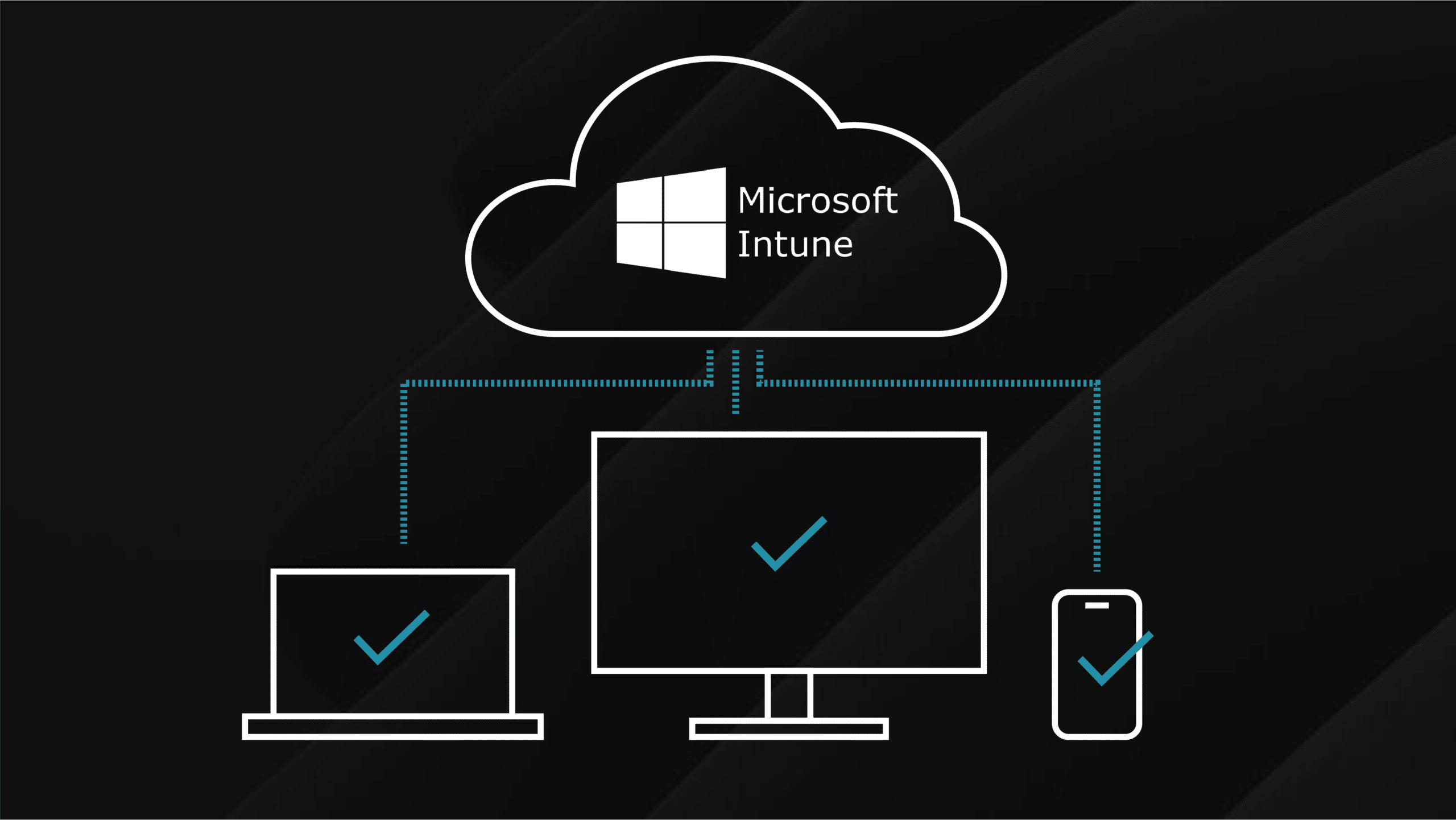
This guide documents the complete process for deploying Windows devices via Autopilot with integrated Windows LAPS password management. All configurations have been lab-verified on Windows 11 25H2 in a pure Azure AD/Entra joined environment.
The guide covers tenant configuration from scratch, custom local administrator account naming, passphrase-based passwords, BitLocker key escrow, and troubleshooting common policy conflicts.
Prerequisites and Licensing
Before configuring Autopilot, LAPS, or BitLocker, the tenant must have appropriate licensing. Missing licenses cause silent failures during OOBE deployment.
| Component | License Requirement | Notes |
|---|---|---|
| Windows Autopilot | Microsoft Intune Plan 1 | Included in M365 E3/E5/Business Premium |
| Automatic MDM Enrollment | Microsoft Entra ID P1 or P2 | Critical - Autopilot cannot function without this |
| Windows LAPS | No additional license | Built into Windows; Intune required for policy delivery |
| BitLocker Management | Microsoft Intune Plan 1 | Key escrow to Entra ID included |
| Dynamic Groups | Microsoft Entra ID P1 | Required for automatic group membership |
| Windows Editions | Pro, Enterprise, or Education | Home edition not supported |
Microsoft 365 Business Premium, E3, E5, or Enterprise Mobility + Security E3/E5 bundles include all required components.
Administrator Role Requirements
| Task | Required Role |
|---|---|
| Initial MDM enrollment setup | Global Administrator |
| Autopilot profiles and device registration | Intune Administrator |
| Entra ID device join settings | Cloud Device Administrator |
| LAPS policy creation | Endpoint Security Manager or Intune Administrator |
| LAPS password retrieval | Cloud Device Administrator or Intune Administrator |
| BitLocker policy creation | Endpoint Security Manager or Intune Administrator |
| BitLocker key retrieval | Cloud Device Administrator or Helpdesk Administrator |
| Dynamic group creation | Groups Administrator |
Tenant Configuration from Zero
When onboarding a system to a tenant that may not have correct groups and configuration, execute these steps in sequence.
Verify MDM Authority
Navigate to Intune admin center > Tenant administration > Tenant status and verify MDM authority shows “Microsoft Intune”.
Configure Automatic MDM Enrollment
Path: Intune admin center > Devices > Enrollment > Windows > Automatic Enrollment
| Setting | Recommended Configuration |
|---|---|
| MDM user scope | All |
| MAM user scope | None |
| MDM Terms of use URL | Leave default |
| MDM Discovery URL | Leave default |
| MDM Compliance URL | Leave default |
For White Glove deployments, ensure the technician account is included in the MDM user scope.
Configure Entra ID Device Settings
Path: Microsoft Entra admin center > Identity > Devices > Device settings
| Setting | Configuration |
|---|---|
| Users may join devices to Microsoft Entra ID | All or Selected |
| Users may register their devices with Microsoft Entra ID | All |
| Require multifactor authentication to register or join devices | No |
| Maximum number of devices per user | 50 |
| Enable Local Administrator Password Solution (LAPS) | Yes |
The LAPS tenant setting must be enabled before deploying LAPS policies. Policies fail silently if this is not configured.
Dynamic Group Configuration
Group Naming Convention
Consistent naming enables quick identification of group purpose, scope, and membership type.
Format: [Prefix]-[Scope]-[MembershipType]-[Purpose]
| Element | Options | Description |
|---|---|---|
| Prefix | Intune | Identifies groups used exclusively for Intune |
| Scope | DEV (devices), USR (users) | Indicates member type |
| MembershipType | DD (dynamic device), DU (dynamic user), SD (static device), SU (static user) | How membership is determined |
| Purpose | Descriptive name | What the group is used for |
All Autopilot Devices Group
| Field | Value |
|---|---|
| Group type | Security |
| Group name | Intune-DEV-DD-Autopilot-All |
| Group description | Dynamic group containing all Windows Autopilot registered devices |
| Membership type | Dynamic Device |
Rule Syntax:
(device.devicePhysicalIDs -any (_ -startsWith "[ZTDid]"))
This rule matches any device with a Zero Touch Deployment ID (ZTDid), assigned when a device is registered with Autopilot.
Devices by Group Tag
For department or deployment type differentiation, use exact match syntax:
(device.devicePhysicalIds -any (_ -eq "[OrderID]:YourGroupTagHere"))
The Group Tag field in Intune maps to the OrderID attribute in Entra ID.
Excluding Specific Group Tags
(device.devicePhysicalIDs -any (_ -startsWith "[ZTDId]")) -and -not (device.devicePhysicalIds -any (_ -eq "[OrderID]:Kiosk"))
Dynamic Group Rule Syntax Reference
| Component | Purpose | Example |
|---|---|---|
device.devicePhysicalIDs | Array containing device identifiers | |
-any | Matches if any value meets condition | (device.devicePhysicalIDs -any ...) |
_ | Current array element being evaluated | (_ -startsWith "[ZTDid]") |
-startsWith | String begins with value | (_ -startsWith "[ZTDid]") |
-eq | Exact string match | (_ -eq "[OrderID]:Production") |
-contains | String contains value | (_ -contains "[ZTDId]") |
-and | Both conditions must be true | (rule1) -and (rule2) |
-not | Negates following condition | -not (rule) |
PowerShell Group Creation
Connect-MgGraph -Scopes "Group.ReadWrite.All"

New-MgGroup -DisplayName "Intune-DEV-DD-Autopilot-All" `
    -MailEnabled:$false -MailNickname "autopilot-all" `
    -SecurityEnabled:$true -GroupTypes "DynamicMembership" `
    -MembershipRule '(device.devicePhysicalIDs -any (_ -startsWith "[ZTDid]"))' `
    -MembershipRuleProcessingState "On"
Dynamic group membership is not instant. Initial processing takes 5-15 minutes typically, up to 24 hours in large tenants. Do not proceed with Autopilot deployment until the device appears in the target group.
Autopilot Device Registration
Manual Hardware Hash Collection at OOBE
At the OOBE screen before deployment, press Shift + F10 to open Command Prompt, run powershell.exe, then execute:
Set-ExecutionPolicy -Scope Process -ExecutionPolicy RemoteSigned -Force
Install-Script -Name Get-WindowsAutopilotInfo -Force

# Upload directly to Intune
Get-WindowsAutopilotInfo -Online

# Or save to file
Get-WindowsAutopilotInfo -OutputFile C:\HWID\AutopilotHWID.csv
CSV Import via Intune Portal
Path: Devices > Windows > Windows enrollment > Devices > Import
CSV requirements: plain text (Notepad, not Excel), ANSI encoding, maximum 500 devices per file.
Header format:
Device Serial Number,Windows Product ID,Hardware Hash,Group Tag,Assigned User
Setting Group Tags During Registration
Get-WindowsAutopilotInfo -Online -GroupTag "Production"
Post-registration: Devices > Windows > Windows enrollment > Devices > [Select device] > Edit > Group tag
Autopilot Deployment Profile Configuration
Path: Devices > Windows > Windows enrollment > Deployment Profiles > Create profile > Windows PC
OOBE Settings (Lab Verified)
| Setting | Value | Notes |
|---|---|---|
| Deployment mode | User-Driven | |
| Join to Microsoft Entra ID as | Microsoft Entra joined | Pure cloud join |
| Microsoft Software License Terms | Hide | Reduces OOBE friction |
| Privacy settings | Hide | User doesn’t need to configure |
| Hide change account options | Hide | Prevents local account creation |
| User account type | Standard | Least privilege principle |
| Allow pre-provisioned deployment | Yes | Required for White Glove |
| Language (Region) | English (United Kingdom) | Set to your region |
| Automatically configure keyboard | Yes | |
| Apply device name template | No | Manual rename for custom schemes |
Device Naming Templates
If using a template (max 15 characters):
| Template | Example Result | Use Case |
|---|---|---|
PC-%RAND:8% | PC-47291038 | Generic |
WS-%RAND:6% | WS-582914 | Workstation prefix |
%SERIAL% | Device serial | Only if serial is meaningful |
Custom naming schemes (e.g., ORION-I, ORION-II with Roman numerals) require manual renaming post-deployment as Autopilot does not support sequential or Roman numeral macros.
Assign the profile to: Intune-DEV-DD-Autopilot-All
Enrollment Status Page Configuration
Path: Devices > Windows > Windows enrollment > Enrollment Status Page > Create
Settings (Lab Verified)
| Setting | Value |
|---|---|
| Name | ESP-Standard |
| Description | Standard ESP for Autopilot deployments |
| Show app and profile configuration progress | Yes |
| Show error when installation takes longer than (minutes) | 60 |
| Show custom message when time limit or error occur | Yes |
| Custom message | Contact IT Support if this screen persists |
| Turn on log collection and diagnostics page | Yes |
| Only show page to devices provisioned by OOBE | Yes |
| Block device use until all apps and profiles are installed | Yes |
| Allow users to reset device if installation error occurs | Yes |
| Allow users to use device if installation error occurs | No |
Limit blocking apps to 10 or fewer critical applications. Avoid mixing LOB (MSI) and Win32 apps in ESP blocking list.
Assign to: Intune-DEV-DD-Autopilot-All
White Glove Pre-Provisioning
White Glove (Windows Autopilot for pre-provisioned deployment) enables IT technicians to pre-configure devices before delivery to end users.
Prerequisites
| Requirement | Details |
|---|---|
| Deployment profile | “Allow pre-provisioned deployment” must be Yes |
| Network | Wired Ethernet recommended |
| TPM 2.0 | Required for attestation |
| Timing | Wait 90 minutes minimum between technician and user flow |
| Maximum wait | 6 months before certificates expire |
| ESP | Must be enabled |
Technician Flow Procedure
- Connect device to wired Ethernet (recommended)
- Power on device
- At first OOBE screen, press Windows key five times
- Windows Autopilot Configuration screen appears
- Verify organisation name, assigned user, profile name
- Select Provision (Windows 10) or Next (Windows 11)
- Device may reboot, then ESP appears
- Wait for green success screen
- Select Reseal - device shuts down
- Package and ship to end user
Do not proceed past the green screen or sign in. Reseal performs sysprep /shutdown /oobe.
User Flow Procedure
- User powers on device
- Connects to network
- Signs in with Entra ID credentials
- User ESP (Account setup) runs
- Desktop becomes available
Local Administrator Account Configuration
The built-in Windows Administrator account is disabled by default and named “Administrator”. Before LAPS can manage a custom-named account, you must enable and rename it via Settings Catalog.
This is required for Windows 10 and Windows 11 versions prior to 24H2. Windows 11 24H2+ can use LAPS Automatic Account Management instead.
Creating the Settings Catalog Policy
Path: Devices > Configuration > Create > New Policy
| Setting | Value |
|---|---|
| Platform | Windows 10 and later |
| Profile type | Settings catalog |
| Name | CFG-Security-LocalAdmin-Orion |
| Description | Enables and renames built-in Administrator account for LAPS management |
Click Add settings and search for each setting under Local Policies Security Options:
| Setting | Value |
|---|---|
| Accounts Enable Administrator Account Status | Enable |
| Accounts Rename Administrator Account | Orion |
Account Name Requirements: maximum 20 characters, cannot contain " / \ [ ] : ; | = , + * ? < >
Assignment
Assign to both groups to ensure all devices receive the configuration:
Intune-All-Windows-Devices(existing enrolled devices)Intune-DEV-DD-Autopilot-All(future Autopilot deployments)
Policy Timing Consideration
If LAPS attempts to manage the account before this policy applies, LAPS will fail with Event ID 10013 (account not found). LAPS retries hourly, so once the Settings Catalog policy applies, LAPS will succeed on its next processing cycle.
Windows LAPS Configuration
Creating the LAPS Policy
Path: Endpoint security > Account protection > Create Policy
| Setting | Value |
|---|---|
| Platform | Windows |
| Profile | Local admin password solution (Windows LAPS) |
| Name | LAPS-AzureAD-LabExercise |
Configuration Settings (Lab Verified)
| Setting | Value | Notes |
|---|---|---|
| Backup Directory | Backup to Azure AD only | For pure cloud devices |
| Administrator Account Name | Orion | Must match Settings Catalog rename exactly |
| Password Age Days | 7 | Minimum for Azure AD; good for lab observation |
| Password Complexity | 8 | Passphrase with short words and unique prefixes |
| Passphrase Length | 6 | 6 words (default) |
| Post Authentication Actions | Reset password and logoff the managed account | Value 3 |
| Post Authentication Reset Delay | 8 | 8 hours grace period |
Password Complexity Options
| Value | Setting | Windows Support |
|---|---|---|
| 1 | Large letters only | All versions (legacy) |
| 2 | Large + small letters | All versions (legacy) |
| 3 | Large + small + numbers | All versions (legacy) |
| 4 | Large + small + numbers + special | All versions (recommended minimum) |
| 5 | Improved readability (excludes confusing chars) | All versions |
| 6 | Passphrase - long words | Windows 11 24H2+ only |
| 7 | Passphrase - short words | Windows 11 24H2+ only |
| 8 | Passphrase - short words with unique prefixes | Windows 11 24H2+ only |
Setting 8 produces passwords like HarborPencilMountainDragonRiverForest - easier to read and type than random character strings.
If passphrase settings (6-8) are deployed to older Windows versions, they fall back to complexity setting 4.
Post Authentication Reset Delay
| Value | Behaviour |
|---|---|
| 0 hours | Post-auth actions disabled entirely |
| 1-23 hours | Password rotates after specified time |
| 24 hours | Full day grace period (default) |
8 hours covers a working day of troubleshooting without leaving passwords exposed indefinitely.
Assignment
Assign to both groups:
Intune-All-Windows-DevicesIntune-DEV-DD-Autopilot-All
When adding groups in Endpoint Security policies, you may need to type the group name manually rather than using the picker due to an Intune UI quirk.
BitLocker Configuration and Key Escrow
BitLocker encryption with key escrow to Entra ID ensures recovery keys are centrally stored and accessible for support scenarios.
Creating BitLocker Policy via Endpoint Security
Path: Endpoint security > Disk encryption > Create Policy
| Setting | Value |
|---|---|
| Platform | Windows |
| Profile | BitLocker |
| Name | BitLocker-AzureAD-Standard |
Configuration Settings
BitLocker Base Settings
| Setting | Value | Notes |
|---|---|---|
| Require device encryption | Yes | Enables BitLocker |
| Allow warning for other disk encryption | No | Prevents prompts about third-party encryption |
| Configure encryption method | Yes | Enables algorithm selection |
Encryption Methods
| Drive Type | Recommended Algorithm |
|---|---|
| Operating system drives | XTS-AES 256-bit |
| Fixed data drives | XTS-AES 256-bit |
| Removable data drives | AES-CBC 128-bit |
Operating System Drive Settings
| Setting | Value | Notes |
|---|---|---|
| Require additional authentication at startup | No | For TPM-only (silent encryption) |
| Compatible TPM startup | Required | Enforces TPM presence |
| Recovery key backup to Azure AD | Required | Key escrow |
| Recovery password backup to Azure AD | Required | |
| Hide recovery options from users | Yes | Prevents user confusion |
| Enable preboot recovery message | No | Unless custom message needed |
Fixed Data Drive Settings
| Setting | Value |
|---|---|
| Recovery key backup to Azure AD | Required |
| Recovery password backup to Azure AD | Required |
Assignment
Assign to both groups for comprehensive coverage:
Intune-All-Windows-DevicesIntune-DEV-DD-Autopilot-All
Verifying BitLocker Key Escrow
In Entra ID: Microsoft Entra admin center > Devices > All devices > [Device] > BitLocker keys
In Intune: Devices > All devices > [Device] > Recovery keys
On Device (PowerShell):
# Check BitLocker status
Get-BitLockerVolume | Select-Object MountPoint, VolumeStatus, EncryptionPercentage, KeyProtector

# Verify key protector includes recovery password
(Get-BitLockerVolume -MountPoint C:).KeyProtector
Retrieving Recovery Keys
Recovery keys can be retrieved by administrators with Cloud Device Administrator, Intune Administrator, or Helpdesk Administrator roles.
Via Intune: Devices > All devices > [Device] > Recovery keys > Show recovery key
Via Entra ID: Devices > All devices > [Device] > BitLocker keys
LAPS Policy Overlap and Conflict Resolution
When multiple LAPS configurations or policy changes occur, conflicts can arise that prevent proper password management.
Scenario 1: Multiple LAPS Policies Targeting Same Device
Symptoms: Event ID 10017 in LAPS event log, password not rotating, inconsistent password values.
Resolution:
- Review all LAPS policies in
Endpoint security > Account protection - Check group assignments for overlap
- Ensure each device is targeted by only ONE LAPS policy
- Use Intune filters or exclusion groups to prevent overlap
Scenario 2: Account Name Mismatch
Symptoms: Event ID 10013 (account not found), LAPS policy shows success but no password in portal.
Resolution:
- Verify Settings Catalog rename value matches LAPS policy exactly
- Confirm the rename policy has applied by checking local user accounts:
Get-LocalUser | Select-Object Name, Enabled, SID
Scenario 3: Settings Catalog and LAPS Policy Race Condition
Symptoms: Fresh Autopilot deployment, LAPS fails initially then succeeds on retry, Event ID 10013 followed by 10029 after policy sync.
Explanation: LAPS processes before Settings Catalog completes. LAPS looks for the custom account, but it doesn’t exist yet.
Resolution: This is expected behaviour. LAPS retries hourly. Once Settings Catalog applies, next LAPS cycle succeeds. No action required unless failures persist beyond 2-3 hours.
Scenario 4: The Reporting Lag Scenario (Lab Verified)
Symptoms: Local admin renamed successfully on device, Intune portal shows old account name and/or stale password, device event log shows Event ID 10016: “The managed account password does not need to be updated at this time.”
Explanation: LAPS determined the current password is still valid based on the rotation timer. Because no new password was generated, no new report was uploaded to Intune. The portal displays cached/stale data.
Resolution: Force an immediate password rotation to trigger a fresh upload:
# Run on the affected device as Administrator

# Force password rotation (bypasses timer)
Reset-LapsPassword

# Verify success in event log
Get-WinEvent -LogName "Microsoft-Windows-LAPS/Operational" -MaxEvents 5
Look for Event ID 10029 (“Password backed up to Azure AD”) confirming successful upload.
Wait 5 minutes, then refresh Intune portal. Account name and password will update.
Invoke-LapsPolicyProcessing is insufficient here because it respects the rotation timer and will not force a new password if the current one is still valid.
Scenario 5: Legacy LAPS Conflict
Symptoms: Windows LAPS and Legacy Microsoft LAPS both configured, unpredictable password rotation, multiple AdmPwd attributes on computer object.
Resolution:
- Remove Legacy LAPS GPO settings
- Uninstall Legacy LAPS agent if present
- Configure Windows LAPS exclusively
Diagnostic Commands
# Check current LAPS policy on device
Get-LapsPolicy

# Full LAPS diagnostics
Get-LapsDiagnostics

# Review recent LAPS events
Get-WinEvent -LogName "Microsoft-Windows-LAPS/Operational" -MaxEvents 20 |
    Select-Object TimeCreated, Id, Message | Format-Table -Wrap

# Force policy processing (respects timer)
Invoke-LapsPolicyProcessing

# Force password rotation (ignores timer)
Reset-LapsPassword
LAPS Event ID Reference
| Event ID | Meaning | Action |
|---|---|---|
| 10013 | Specified account not found | Check Settings Catalog rename policy |
| 10016 | Password does not need updating | Normal - within rotation period |
| 10017 | Policy conflict detected | Review policy assignments |
| 10018 | Policy processing started | Informational |
| 10020 | Password updated successfully | Success |
| 10027 | Password doesn’t meet complexity | Check local password policy |
| 10029 | Password backed up to Azure AD | Success - portal will update |
| 10031 | Azure AD backup failed | Verify LAPS enabled in Entra ID |
Verification and Testing
Pre-Deployment Checklist
| Check | Location | Expected Result |
|---|---|---|
| Device registered | Devices > Windows enrollment > Devices | Device listed |
| Profile assigned | Same location, Profile Status column | Assigned |
| Group membership | Groups > [Autopilot group] > Members | Device appears |
| ESP assigned | Devices > Windows enrollment > ESP | Profile assigned |
| Admin enable/rename policy | Devices > Configuration | Assigned to device group |
| LAPS policy assigned | Endpoint security > Account protection | Assigned to device group |
| BitLocker policy assigned | Endpoint security > Disk encryption | Assigned to device group |
Post-Deployment Verification
LAPS Verification
In Intune: Devices > All devices > [Device] > Local admin password
| Field | Expected |
|---|---|
| Account name | Orion (or your configured name) |
| Password | Visible (click to reveal) |
| Last rotated | Recent date |
| Expiration | Based on Password Age Days setting |
On Device:
# Verify account exists and is enabled
Get-LocalUser -Name "Orion"

# Check LAPS policy applied
Get-LapsPolicy

# View recent LAPS events
Get-WinEvent -LogName "Microsoft-Windows-LAPS/Operational" -MaxEvents 5
BitLocker Verification
In Intune: Devices > All devices > [Device] > Recovery keys
On Device:
Get-BitLockerVolume | Select-Object MountPoint, VolumeStatus, EncryptionPercentage
Quick Reference Commands
Device Registration
Install-Script -Name Get-WindowsAutopilotInfo -Force
Get-WindowsAutopilotInfo -Online -GroupTag "Production"
LAPS Management
# View policy
Get-LapsPolicy

# Full diagnostics
Get-LapsDiagnostics

# Force rotation (bypasses timer)
Reset-LapsPassword

# Process policy (respects timer)
Invoke-LapsPolicyProcessing

# View events
Get-WinEvent -LogName "Microsoft-Windows-LAPS/Operational" -MaxEvents 10
BitLocker Management
# Check status
Get-BitLockerVolume

# View key protectors
(Get-BitLockerVolume -MountPoint C:).KeyProtector

# Backup key to Azure AD manually
BackupToAAD-BitLockerKeyProtector -MountPoint "C:" -KeyProtectorId $KeyProtectorId
Graph API Password Retrieval
Connect-MgGraph -Scopes "Device.Read.All","DeviceLocalCredential.Read.All"
Get-LapsAADPassword -DeviceIds "DEVICENAME" -IncludePasswords -AsPlainText
Dynamic Group Creation
Connect-MgGraph -Scopes "Group.ReadWrite.All"

New-MgGroup -DisplayName "Intune-DEV-DD-Autopilot-All" `
    -MailEnabled:$false -MailNickname "autopilot-all" `
    -SecurityEnabled:$true -GroupTypes "DynamicMembership" `
    -MembershipRule '(device.devicePhysicalIDs -any (_ -startsWith "[ZTDid]"))' `
    -MembershipRuleProcessingState "On"
Sources and References
- Windows Autopilot Licensing Requirements
- Autopilot Device Registration
- Pre-provisioned Deployment
- Dynamic Group Rules
- Device Groups for Autopilot
- Windows LAPS Overview
- LAPS Policy Settings
- LAPS Account Management
- LAPS Passwords and Passphrases
- LAPS Troubleshooting
- BitLocker with Intune
- MDM Enrollment
- Entra Device Settings
- Group Naming Convention