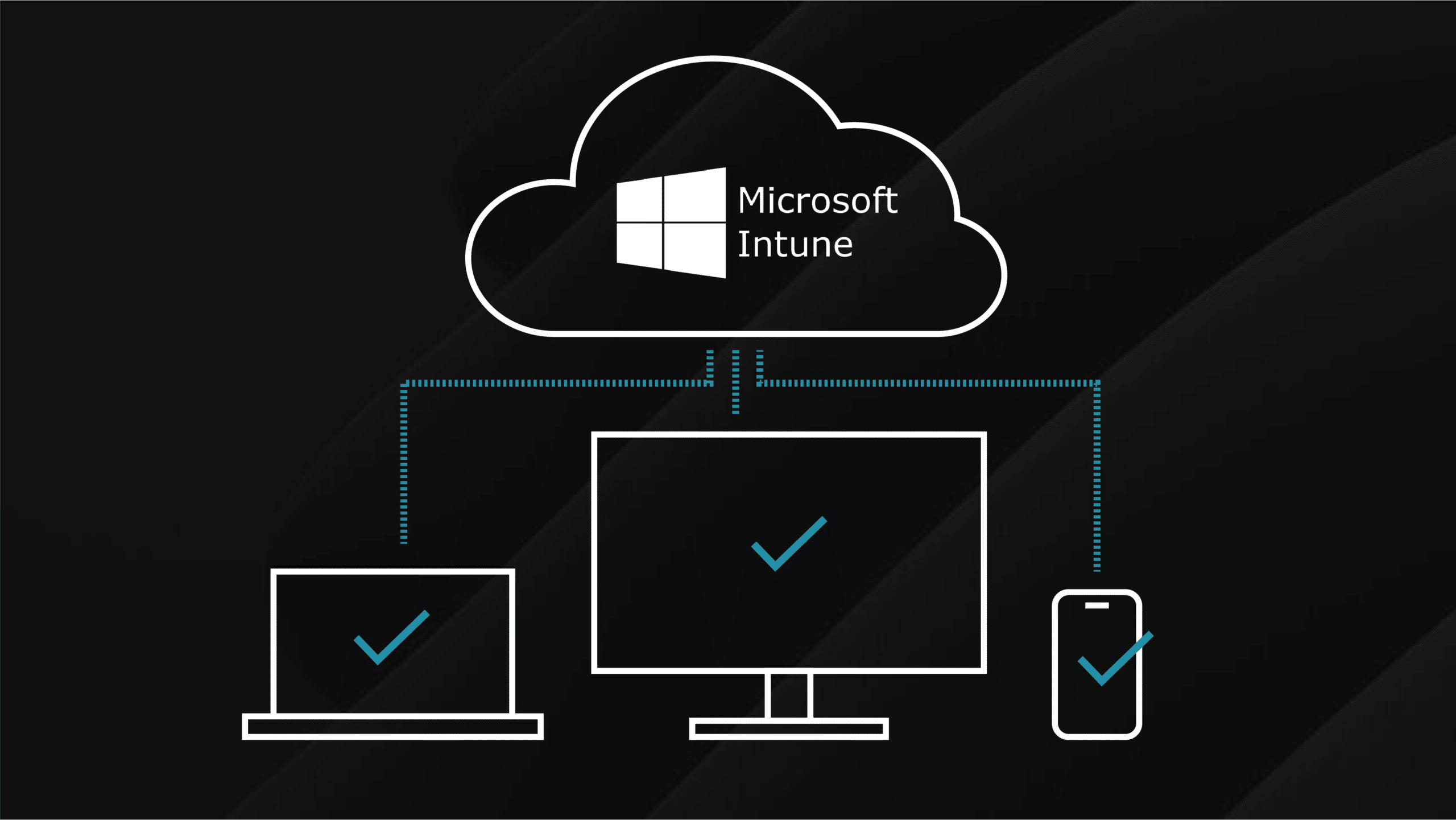
Introduction: Modern Application Management with Intune
Microsoft Intune represents a fundamental shift in how enterprises deploy and manage applications. Moving from traditional on-premises solutions like SCCM (System Center Configuration Manager) to cloud-based mobile device management (MDM) and mobile application management (MAM), Intune provides unified endpoint management for devices across Windows, macOS, iOS, Android, and Linux platforms.
This guide provides enterprise-grade implementation strategies, best practices, and troubleshooting procedures for application deployment through Microsoft Intune. Whether you’re migrating from SCCM, implementing Intune for the first time, or optimizing an existing deployment, this comprehensive reference covers everything you need.
What This Guide Covers
Part 1: Foundation
- Understanding Intune architecture and licensing
- Prerequisites and tenant configuration
- Integration with Azure AD and Microsoft 365
- Role-based access control (RBAC)
Part 2: Application Deployment
- Application types and deployment methods
- Win32 app packaging and deployment
- Microsoft Store apps and Office 365 ProPlus
- Line-of-business (LOB) applications
- Web links and built-in apps
Part 3: Enterprise Best Practices
- Application lifecycle management
- Security and compliance integration
- Update management strategies
- User experience optimization
Part 4: Advanced Scenarios
- Co-management with Configuration Manager
- Conditional access integration
- App protection policies (MAM)
- Troubleshooting and monitoring
Why This Matters
The Traditional Model is Dead:
- On-premises infrastructure is expensive
- VPNs don’t scale for remote workforce
- User expectations demand self-service
- Security perimeters have dissolved
Intune Solves Modern Challenges:
- Cloud-native, globally distributed
- Zero-trust security model
- Works anywhere, any device
- Integrated with Microsoft 365 ecosystem
Let’s build enterprise-grade application deployment infrastructure.
Part 1: Understanding Microsoft Intune
What is Microsoft Intune?
Microsoft Intune is a cloud-based endpoint management solution that provides mobile device management (MDM) and mobile application management (MAM) capabilities. It’s part of Microsoft’s Enterprise Mobility + Security (EMS) suite and integrates deeply with Azure Active Directory (Azure AD) and Microsoft 365.
Official Definition:
“Microsoft Intune is a cloud-based service that focuses on mobile device management (MDM) and mobile application management (MAM). You control how your organization’s devices are used, including mobile phones, tablets, and laptops. You can also configure specific policies to control applications.”
Source: What is Microsoft Intune? | Microsoft Learn
Architecture Overview
Intune operates as a cloud service with the following components:
1. Microsoft Intune Service (Cloud)
- Central management portal
- Policy engine
- Application repository
- Reporting and analytics
2. Azure Active Directory
- Identity provider
- Device registration
- Conditional access policies
- Group-based targeting
3. Device Agents
- Windows: MDM channel via device enrollment
- macOS: Company Portal app + MDM profile
- iOS/iPadOS: MDM profile via Apple Push Notification Service
- Android: Company Portal app or Android Enterprise
4. Integration Points
- Microsoft Defender for Endpoint
- Microsoft 365 Apps
- Microsoft Store for Business (deprecated, replaced by Microsoft Store)
- Apple Business Manager / Apple School Manager
- Google Play Managed Google Play
Architecture Diagram:
[Azure AD] -> -> [Microsoft Intune] -> -> [Microsoft 365]
-> -> ->
[Conditional] [Policy Engine] [App Deployment]
Access -> ->
-> [Devices] [Applications]
-> -> ->
[User/Device] [Windows/Mac] [Win32/Store/LOB]
Identity [iOS/Android]
Reference: Intune architecture | Microsoft Learn
Licensing Requirements
Understanding licensing is critical before implementation.
Required Licenses for Intune
Option 1: Standalone Intune License
- Microsoft Intune Plan 1 - Base functionality
- Microsoft Intune Plan 2 - Advanced features (endpoint privilege management, specialized devices)
Option 2: Microsoft 365 (Includes Intune)
- Microsoft 365 E3 - Includes Intune Plan 1
- Microsoft 365 E5 - Includes Intune Plan 1 + additional security features
- Microsoft 365 F3 - Includes Intune (limited features for frontline workers)
Option 3: Enterprise Mobility + Security (EMS)
- EMS E3 - Intune + Azure AD Premium P1 + Azure Information Protection
- EMS E5 - Adds Azure AD Premium P2 + Microsoft Defender for Identity
Important Notes:
- Intune licenses are per-user, not per-device
- One user can enroll up to 15 devices (configurable)
- Co-management with SCCM requires Configuration Manager licenses
Source: Microsoft Intune licensing | Microsoft Learn
License Purchase: Microsoft 365 Enterprise Plans
Additional Licensing Considerations
Windows 10/11 Licensing:
- Windows 10/11 Pro or Enterprise required for full MDM features
- Windows 10/11 Home has limited MDM support
- Windows 10/11 Enterprise E3/E5 provides additional features
Apple Device Enrollment:
- Apple Business Manager or Apple School Manager (free)
- Apple Push Notification Service certificate (free, renewed annually)
Android Enterprise:
- Managed Google Play (free)
- Android Enterprise enrollment requires Google account binding
Reference: Supported operating systems and browsers in Intune | Microsoft Learn
Prerequisites for Implementation
Before deploying Intune, ensure these prerequisites are met:
1. Azure Active Directory Tenant
Required:
- Active Azure AD tenant
- Azure AD Premium P1 or P2 (for conditional access)
- Global Administrator or Intune Administrator role
Setup:
1. Sign in to Azure Portal: https://portal.azure.com
2. Navigate to Azure Active Directory
3. Verify tenant is active and licensed
4. Create admin accounts with appropriate roles
Reference: Set up Azure Active Directory | Microsoft Learn
2. Intune Subscription
Activation:
- Microsoft 365 admin center: https://admin.microsoft.com
- Navigate to Billing > Purchase services
- Search for “Intune” or use included Microsoft 365 licenses
- Assign licenses to users
Verify Intune Access:
- Sign in to Microsoft Intune admin center: https://intune.microsoft.com
- You should see the Intune dashboard
Reference: Set up Microsoft Intune | Microsoft Learn
3. Network Requirements
Required Endpoints:
Devices must reach these Microsoft endpoints:
Windows Devices:
*.manage.microsoft.com
*.microsoft.com
*.windows.net
*.microsoftonline.com
*.microsoftonline-p.com
login.live.com
iOS/iPadOS Devices:
Apple Push Notification Service (APNs):
*.push.apple.com (port 443/5223)

Intune enrollment:
*.manage.microsoft.com
*.microsoft.com
Android Devices:
*.google.com
*.googleapis.com
*.android.com
*.manage.microsoft.com
Firewall Configuration:
- Ports: 80 (HTTP), 443 (HTTPS)
- Protocols: TLS 1.2 or higher
- Proxy: Proxy settings can be configured per-device
Complete Endpoint List: Network endpoints for Microsoft Intune | Microsoft Learn
4. MDM Authority
Important: Only one MDM authority can be set per tenant.
Options:
- Intune standalone (recommended for new deployments)
- Configuration Manager co-management (hybrid approach)
- Basic Mobility and Security for Microsoft 365 (not recommended - limited features)
Set MDM Authority:
- Sign in to Intune admin center
- Navigate to Tenant administration > Tenant status
- Set MDM authority to Microsoft Intune
Warning: Changing MDM authority requires unenrolling all devices and re-enrolling them.
Reference: Set the mobile device management authority | Microsoft Learn
5. Apple Device Management Setup (If Managing iOS/macOS)
Required Steps:
A) Apple Push Certificate (Required for iOS/iPadOS/macOS)
- Sign in to Intune admin center
- Navigate to Devices > iOS/iPadOS > iOS/iPadOS enrollment
- Select Apple MDM Push certificate
- Download certificate signing request (CSR)
- Go to Apple Push Certificates Portal
- Sign in with Apple ID (use company-owned account, not personal)
- Upload CSR and download certificate
- Upload certificate to Intune
Critical: Certificate expires annually. Set reminder to renew 30 days before expiration.
Reference: Get an Apple MDM push certificate | Microsoft Learn
B) Apple Business Manager (Optional but Recommended)
Benefits:
- Automated device enrollment (zero-touch deployment)
- Volume app purchases
- Device assignment to Intune
Setup:
- Enroll in Apple Business Manager
- Add Intune as MDM server
- Configure device enrollment profiles
Reference: Set up Apple automated device enrollment | Microsoft Learn
6. Android Enterprise Setup (If Managing Android)
Required: Managed Google Play connection
Setup:
- Sign in to Intune admin center
- Navigate to Devices > Android > Android enrollment
- Select Managed Google Play
- Click I agree to connect
- Sign in with Google account (use company account)
Enrollment Options:
- Android Enterprise work profile (BYOD - recommended)
- Android Enterprise fully managed (corporate-owned)
- Android Enterprise dedicated devices (kiosk mode)
Reference: Connect your Intune account to your Managed Google Play account | Microsoft Learn
Role-Based Access Control (RBAC)
Proper RBAC ensures security and delegation of administrative tasks.
Built-in Intune Roles
Global Roles (Azure AD):
- Global Administrator - Full access to all Azure AD and Intune
- Intune Administrator - Full access to Intune only
Intune-Specific Roles:
| Role | Permissions | Use Case |
|---|---|---|
| Help Desk Operator | View devices, run remote actions, view assignments | Tier 1 support |
| Policy and Profile Manager | Create/edit policies, apps, view reports | Configuration management |
| Application Manager | Manage apps, view device details | Application team |
| Read Only Operator | View all settings, no modifications | Auditors, reporting |
| Endpoint Security Manager | Manage security baselines, compliance policies | Security team |
| School Administrator | Manage education settings | K-12 environments |
Custom Roles: Create custom roles with specific permissions:
- Intune admin center > Tenant administration > Roles
- Select Create > Custom role
- Define permissions (read, update, delete, assign)
- Assign to users/groups with scope tags
Best Practice: Use least-privilege principle. Create custom roles for specific teams rather than granting broad permissions.
Reference: Role-based access control (RBAC) with Microsoft Intune | Microsoft Learn
Scope Tags
Scope tags allow role-based access to specific objects (devices, apps, policies).
Example Use Case:
- US-Devices scope tag for US-based administrators
- EU-Devices scope tag for EU-based administrators
- Administrators only see/manage devices with their scope tag
Implementation:
- Create scope tags: Tenant administration > Roles > Scope tags
- Assign scope tags to objects (devices, apps, policies)
- Assign scope tags to admin roles
Reference: Use role-based access control and scope tags for distributed IT | Microsoft Learn
Part 2: Initial Intune Configuration
Step 1: Configure Tenant Settings
MDM Authority
Set MDM Authority (First Time Only):
- Sign in to Microsoft Intune admin center
- Navigate to Tenant administration > Tenant status
- Locate MDM authority
- Select Microsoft Intune
Screenshot location: Shows tenant status page with MDM authority highlighted
Reference: Set the mobile device management authority | Microsoft Learn
Device Enrollment Restrictions
Control which devices can enroll and how.
Configure Enrollment Restrictions:
- Intune admin center > Devices > Enrollment restrictions
- Configure:
- Device type restrictions (allow/block platforms)
- Device limit restrictions (max devices per user)
- Personal device enrollment (allow/block BYOD)
Recommended Settings:
Device Type Restrictions:
- Windows: Allow (corporate-owned devices)
- iOS/iPadOS: Allow
- Android: Allow (Android Enterprise only)
- macOS: Allow (if managing Macs)

Device Limit:
- Maximum devices per user: 15 (default)
- Adjust based on organization needs (3-5 for strict control)

Personal Devices:
- Allow with restrictions (work profile on Android)
- Block for highly secure environments
Reference: Set enrollment restrictions | Microsoft Learn
Terms and Conditions
Present legal terms to users during enrollment.
Create Terms and Conditions:
- Intune admin center > Tenant administration > Terms and conditions
- Select Create
- Configure:
- Name: Company Device Policy
- Description: Terms for corporate device usage
- Terms and conditions: (Paste company policy)
- Summary of terms: Brief overview
Best Practice: Include acceptable use policy, data privacy statement, and device management disclosure.
Reference: Terms and conditions for user access | Microsoft Learn
Step 2: Configure Company Branding
Customize Company Portal and enrollment experience.
Configure Branding:
Intune admin center > Tenant administration > Customization
Company Portal tab:
- Company name: Your Organization Name
- Theme color: Corporate brand color (hex code)
- Show company logo: Upload company logo (PNG, 400x100px recommended)
- Company logo background: Match or contrast
- Company portal website URL: (If you have custom portal)
Support information tab:
- Contact name: IT Help Desk
- Phone number: +1-555-0100
- Email address: helpdesk@yourcompany.com
- Support website: https://support.yourcompany.com
- Privacy statement URL: https://yourcompany.com/privacy
Impact: Users see branded Company Portal app on all devices with your support information.
Reference: How to customize the Intune Company Portal apps | Microsoft Learn
Step 3: Create Device Groups in Azure AD
Groups are fundamental to Intune targeting.
Group Strategy
Recommended Group Structure:
Device Groups (Azure AD):
 All-Corporate-Devices (dynamic)
 Windows-Devices (dynamic)
 macOS-Devices (dynamic)
 iOS-Devices (dynamic)
 Android-Devices (dynamic)
 Pilot-Devices (assigned)
 VIP-Devices (assigned)

User Groups (Azure AD):
 All-Corporate-Users
 Department-IT
 Department-Finance
 Department-Sales
 Pilot-Users
 VIP-Users
Dynamic Groups (Recommended):
Dynamic groups automatically add/remove devices based on rules.
Example: All Windows Devices
- Azure AD portal > Groups > New group
- Group type: Security
- Group name: All-Windows-Devices
- Membership type: Dynamic Device
- Dynamic device members > Add dynamic query
- Rule syntax:
(device.deviceOSType -eq "Windows")
Example: All Corporate-Owned Devices
(device.deviceOwnership -eq "Company")
Example: Devices Enrolled in Last 30 Days
(device.enrollmentProfileName -ne null) and (device.approximateLastSignInDateTime -ge "2024-10-19T00:00:00Z")
Reference: Create a dynamic group and check status | Microsoft Learn
Static/Assigned Groups
For pilot deployments and exceptions.
Example: Pilot Device Group
- Azure AD portal > Groups > New group
- Group type: Security
- Group name: Pilot-Devices
- Membership type: Assigned
- Members: (Manually add pilot devices)
Best Practice: Use dynamic groups for broad categories, assigned groups for pilots and exceptions.
Step 4: Configure Compliance Policies
Compliance policies define requirements devices must meet.
Understanding Compliance vs. Configuration
| Policy Type | Purpose | Enforcement |
|---|---|---|
| Compliance Policy | Define device health requirements | Block access if non-compliant |
| Configuration Profile | Apply settings to devices | Settings enforced, but no access blocking |
Compliance policies integrate with conditional access to enforce security.
Create Windows Compliance Policy
Example: Corporate Windows Compliance Policy
- Intune admin center > Devices > Compliance policies > Create policy
- Platform: Windows 10 and later
- Name: Corporate Windows Compliance
- Settings:
Device Health:
 Require BitLocker: Yes
 Require Secure Boot: Yes
 Require TPM: Yes
 Defender antimalware required: Yes
 Defender real-time protection: Yes
 Defender antimalware version up to date: Yes
Device Properties:
 Minimum OS version: 10.0.19041 (Windows 10 version 2004 or later)
 Maximum OS version: (Leave blank for latest)
System Security:
 Password required: Yes
 Minimum password length: 8
 Password complexity: Require
 Minutes of inactivity before password is required: 15
 Password expiration (days): 90
 Prevent reuse of previous passwords: 5
 Require encryption: Yes
Microsoft Defender for Endpoint:
Require device to be at or under machine risk score: Medium
Actions for noncompliance:
- Immediately: Mark device as non-compliant
- After 3 days: Send push notification to user
- After 7 days: Send email to user
- After 14 days: Retire noncompliant device (optional, use carefully)
Assignments:
- Include: All-Windows-Devices
- Exclude: Pilot-Devices (during testing)
Reference: Use compliance policies to set rules for devices | Microsoft Learn
Compliance Policy Settings Reference: Windows 10/11 compliance settings | Microsoft Learn
Create iOS/iPadOS Compliance Policy
Example: Corporate iOS Compliance
- Create policy > Platform: iOS/iPadOS
- Name: Corporate iOS Compliance
- Settings:
Device Health:
Jailbroken devices: Block
Device Properties:
 Minimum OS version: 15.0 (adjust based on organization)
 Maximum OS version: (Leave blank)
System Security:
 Password required: Yes
 Simple passwords: Block
 Minimum password length: 6
 Minutes of inactivity before password is required: 15
 Password expiration (days): 90
 Prevent reuse of previous passwords: 5
- Actions for noncompliance: (Same as Windows)
- Assignments: All-iOS-Devices
Reference: iOS/iPadOS compliance settings | Microsoft Learn
Compliance Policy Best Practices
1. Start Permissive, Tighten Gradually
- Begin with basic requirements (OS version, encryption)
- Add stricter requirements after users adapt
- Monitor compliance reports before enforcing
2. Use Conditional Access Integration
Compliance Policy  ->  Conditional Access  ->  Block Access
Non-compliant device  ->  Cannot access company resources
3. Grace Periods
- Allow time for users to remediate issues
- Recommended: 7-14 days before blocking access
- Immediate marking as non-compliant, delayed blocking
4. Notification Strategy
Day 0: Mark non-compliant (no notification)
Day 1: Push notification to device
Day 3: Email to user
Day 7: Email to user and manager
Day 14: Block access (if using conditional access)
5. Test with Pilot Group
- Create pilot group
- Assign compliance policy to pilot only
- Monitor compliance reports for 2-4 weeks
- Adjust settings based on feedback
- Roll out to production
6. Monitor Compliance Reports
View compliance status:
- Intune admin center > Devices > Monitor > Device compliance
- Track: % compliant, top noncompliance reasons, trend over time
Reference: Monitor device compliance policies | Microsoft Learn
Step 5: Configure Device Configuration Profiles
Configuration profiles apply settings to devices (Wi-Fi, VPN, certificates, restrictions, etc.).
Understanding Configuration Profile Types
Windows 10/11 Profiles:
- Device restrictions: Control device features and settings
- Endpoint protection: Security settings (firewall, antivirus, encryption)
- Wi-Fi: Wireless network configuration
- VPN: VPN client settings
- Email: Email account configuration
- Certificates: Deploy certificates for authentication
- Custom: Deploy OMA-URI settings
iOS/iPadOS Profiles:
- Device features: AirPrint, wallpaper, notifications
- Device restrictions: Control device capabilities
- Wi-Fi, VPN, Email, Certificates (same as Windows)
Reference: Apply features and settings on your devices | Microsoft Learn
Example: Windows Security Baseline
Security baselines provide recommended security configurations.
Deploy Windows Security Baseline:
- Intune admin center > Endpoint security > Security baselines
- Select Security Baseline for Windows 10 and later
- Create profile
- Name: Corporate Windows Security Baseline
- Configuration settings: (Review and adjust)
Key Settings in Baseline:
BitLocker:
- Require device encryption: Yes
- BitLocker system drive policy: Enabled
- Startup authentication required: TPM + PIN (optional, TPM only for ease)

Windows Defender:
- Real-time monitoring: Enabled
- Behavior monitoring: Enabled
- Cloud-delivered protection: Enabled
- Submit samples consent: Send safe samples automatically

Firewall:
- Domain profile: Enabled
- Private profile: Enabled
- Public profile: Enabled

SmartScreen:
- SmartScreen for apps and files: Warn
- SmartScreen for Microsoft Edge: Enabled
- Assignments: All-Windows-Devices
- Review + create
Reference: Use security baselines to configure Windows devices | Microsoft Learn
Available Baselines:
- Security Baseline for Windows 10 and later
- Microsoft Defender for Endpoint baseline
- Microsoft Edge baseline
- Microsoft 365 Apps for Enterprise baseline
Example: Device Restrictions Profile (Windows)
Create Device Restrictions:
- Devices > Configuration profiles > Create profile
- Platform: Windows 10 and later
- Profile type: Templates > Device restrictions
- Name: Corporate Windows Restrictions
Recommended Settings:
General:
- Block manual unenrollment: Yes (prevent users from removing device from Intune)
- Block Windows Spotlight: Yes (disable lock screen tips)
- Block adding provisioning packages: Yes
- Block removing provisioning packages: Yes
Password:
- Password required: Yes
- Minimum password length: 8
- Minutes of inactivity before screen locks: 15
- Password expiration (days): 90
- Prevent reuse of previous passwords: 5
Microsoft Defender Antivirus:
- Real-time monitoring: Allow (enforce via security baseline)
- Behavior monitoring: Allow
- Cloud-delivered protection: Allow
Control Panel and Settings:
- Block system page: Yes (prevents access to About page)
- Block adding/removing language: Yes (for standardization)
Microsoft Edge (Legacy):
- Block Microsoft Edge browser: Block (if using Chromium Edge only)
- (Configure Chromium Edge via Administrative Templates)
- Assignments: All-Windows-Devices
Reference: Windows 10/11 device restriction settings | Microsoft Learn
Example: Wi-Fi Profile
Deploy Corporate Wi-Fi:
- Devices > Configuration profiles > Create profile
- Platform: Windows 10 and later
- Profile type: Templates > Wi-Fi
- Name: Corporate Wi-Fi - CorpNetwork
Settings:
Wi-Fi settings:
- Wi-Fi name (SSID): CorpNetwork
- Connect automatically: Yes
- Connect when network is in range: Yes
- Metered connection limit: Unrestricted

Security settings:
- Security type: WPA/WPA2-Enterprise
- EAP type: PEAP
- Certificate server names: (Your RADIUS server FQDN)
- Root certificates for server validation: (Upload trusted root CA)
- Authentication method: Username and Password (or Certificates)
- Enable Outer Identity (privacy): Anonymous
- Assignments: All-Windows-Devices
Reference: Add Wi-Fi settings for Windows devices | Microsoft Learn
Configuration Profile Best Practices
1. Layer Profiles, Don’t Combine Everything
Bad: One massive “Everything” profile Good: Separate profiles for each function
- Windows-Security-Baseline
- Windows-Device-Restrictions
- Windows-Wi-Fi
- Windows-VPN
- Windows-Certificates
Benefits:
- Easier troubleshooting (identify which profile caused issue)
- Granular assignment (not all devices need all profiles)
- Cleaner conflict resolution
2. Use Settings Catalog for Modern Configuration
Settings Catalog is the new way to configure Windows devices (replaces Administrative Templates and Device Restrictions).
When to use:
- Windows 10/11 configuration
- Granular control over specific settings
- Modern, continuously updated settings
Reference: Use the settings catalog to configure settings | Microsoft Learn
3. Avoid Profile Conflicts
Conflict Resolution Order:
- User-targeted policy (if applicable)
- Device-targeted policy
- Most restrictive setting wins (for conflicts)
Best Practice:
- Don’t configure the same setting in multiple profiles
- Use Intune’s conflict detection: Devices > Monitor > Assignment conflicts
4. Test with Pilot Groups
Profile Creation -> Pilot Group Assignment -> Monitor (2 weeks) -> Production Rollout
5. Document Your Profiles
Maintain documentation:
- Profile name and purpose
- Target group
- Key settings configured
- Date deployed
- Known issues
Part 3: Application Deployment in Intune
Understanding Intune Application Types
Intune supports multiple application deployment methods:
| App Type | Use Case | Supported Platforms | Deployment Method |
|---|---|---|---|
| Win32 apps | Traditional Windows applications (.exe, .msi) | Windows 10/11 | IntuneWin package |
| Microsoft Store apps | Universal Windows Platform (UWP) | Windows 10/11 | Microsoft Store integration |
| Microsoft 365 Apps | Office suite (Word, Excel, PowerPoint, etc.) | Windows, macOS | Built-in deployment tool |
| Line-of-business (LOB) apps | Custom/in-house applications | Windows, iOS, Android | Upload app package |
| Web links | Browser-based applications | All platforms | URL shortcut |
| Built-in apps | Pre-configured apps (Microsoft Edge, Teams, etc.) | Varies | Simplified configuration |
Reference: Add apps to Microsoft Intune | Microsoft Learn
Win32 App Deployment (Most Common)
Win32 apps are traditional Windows applications packaged for Intune deployment.
Prerequisites for Win32 Apps
1. Microsoft Win32 Content Prep Tool
Download: Microsoft Win32 Content Prep Tool
Purpose: Converts application files (.exe, .msi) to .intunewin format
2. Application Source Files
- Installer file (.exe or .msi)
- Any dependencies or supporting files
- Installation must support silent/unattended mode
3. Install/Uninstall Commands
- Silent install command
- Silent uninstall command
- Return codes documentation
Step-by-Step: Package Win32 App
Example: Deploy 7-Zip
Step 1: Download 7-Zip Installer
Download 7-Zip MSI installer:
https://www.7-zip.org/download.html
File: 7z2408-x64.msi
Step 2: Create Packaging Folder Structure
# Create folders
New-Item -Path "C:\IntuneApps\7-Zip\Source" -ItemType Directory -Force
New-Item -Path "C:\IntuneApps\7-Zip\Output" -ItemType Directory -Force

# Copy installer to Source folder
Copy-Item "C:\Downloads\7z2408-x64.msi" -Destination "C:\IntuneApps\7-Zip\Source\"
Step 3: Run Content Prep Tool
# Download IntuneWinAppUtil.exe to C:\IntuneApps\Tools\

# Run packaging command
C:\IntuneApps\Tools\IntuneWinAppUtil.exe `
  -c "C:\IntuneApps\7-Zip\Source" `
  -s "7z2408-x64.msi" `
  -o "C:\IntuneApps\7-Zip\Output" `
  -q
Parameters:
-c: Source folder containing installer and dependencies-s: Setup file (main installer)-o: Output folder for .intunewin file-q: Quiet mode (no prompts)
Output: 7z2408-x64.intunewin created in Output folder
Reference: Prepare Win32 app content for upload | Microsoft Learn
Step-by-Step: Deploy Win32 App in Intune
Step 4: Create App in Intune
- Intune admin center > Apps > Windows > Add
- App type: Windows app (Win32)
- Select app package file: Upload
7z2408-x64.intunewin
Step 5: Configure App Information
Name: 7-Zip
Description: Free and open-source file archiver with high compression ratio
Publisher: Igor Pavlov
Information URL: https://www.7-zip.org
Privacy URL: (Leave blank if none)
Developer: Igor Pavlov
Owner: IT Department
Notes: Standard compression utility for all corporate devices
Logo: (Upload 7-Zip logo PNG, recommended 512x512px)
Step 6: Configure Program Settings
Install command:
msiexec /i "7z2408-x64.msi" /qn ALLUSERS=1
Parameters explained:
/i: Install/qn: Quiet mode, no user interfaceALLUSERS=1: Install for all users (not just current user)
Uninstall command:
msiexec /x {23170F69-40C1-2702-2408-000001000000} /qn
To find MSI product code:
# After installing 7-Zip manually:
Get-WmiObject -Class Win32_Product | Where-Object {$_.Name -like "*7-Zip*"} | Select-Object Name, IdentifyingNumber
Device restart behavior:
- Determine behavior based on return codes: (Recommended - Intune determines based on installer return code)
Return codes:
0 = Success
1707 = Success
3010 = Soft reboot (success, reboot required)
1641 = Hard reboot (success, reboot initiated by installer)
1618 = Retry (another installation in progress)
Install behavior:
- System: Install as system (runs as SYSTEM account)
- User: Install as user (only if app requires user context)
Recommended: System (most apps)
Step 7: Configure Requirements
Operating system architecture:
- 64-bit
- 32-bit (only if supporting 32-bit systems)
Minimum operating system:
- Windows 10 20H2 (or your organization’s minimum supported version)
Disk space required: 10 MB (minimum)
Physical memory required: Not required (for lightweight apps)
Number of logical processors required: Not required
CPU speed required: Not required
Additional requirement rules: (Optional - use for advanced targeting)
Example additional rule:
Rule type: File
Path: C:\Program Files\7-Zip
File or folder: 7zFM.exe
Detection method: File or folder exists
Associated with a 32-bit app on 64-bit clients: No
Reference: Win32 app management in Microsoft Intune | Microsoft Learn
Step 8: Configure Detection Rules
Detection rules determine if the app is already installed.
Recommended for MSI installers:
Rule type: MSI
MSI product code: {23170F69-40C1-2702-2408-000001000000}
Use MSI product version check: No (not recommended for most apps)
Alternative Detection Methods:
Option 1: File Detection
Rule type: File
Path: C:\Program Files\7-Zip
File or folder: 7z.exe
Detection method: File or folder exists
Associated with a 32-bit app: No
Option 2: Registry Detection
Rule type: Registry
Key path: HKEY_LOCAL_MACHINE\SOFTWARE\7-Zip
Value name: Path
Detection method: Key exists
Associated with a 32-bit app: No
Option 3: Custom Script Detection (Advanced)
Rule type: Custom
Script file: Check-7Zip.ps1
Run script as 32-bit process: No
Enforce script signature check: No (unless script is signed)
Check-7Zip.ps1:
# Detection script for 7-Zip
$7zipPath = "C:\Program Files\7-Zip\7z.exe"

if (Test-Path $7zipPath) {
    # Get file version
    $version = (Get-Item $7zipPath).VersionInfo.FileVersion

    # Required version
    $requiredVersion = "24.08"

    if ([version]$version -ge [version]$requiredVersion) {
        Write-Host "7-Zip version $version is installed"
        Exit 0  # Success (app installed)
    }
}

Exit 1  # Not found or version too old
Best Practice: Use MSI product code for MSI installers, file detection for .exe installers.
Reference: Win32 app detection methods | Microsoft Learn
Step 9: Configure Dependencies (Optional)
If app requires other apps to be installed first.
Example: App requires Microsoft Visual C++ Redistributable
- Dependencies tab > Add
- Select previously created VC++ Redist app
- Dependency type: Automatically install
- Configure: (Leave default)
Reference: Win32 app dependencies and supersedence | Microsoft Learn
Step 10: Configure Supersedence (Optional)
Supersedence allows automatic replacement of old versions.
Example: 7-Zip 24.08 supersedes 7-Zip 24.07
- Supersedence tab > Add
- Select old 7-Zip version
- Uninstall previous version: Yes
- Configure: (Leave default)
Best Practice: Use supersedence for seamless version upgrades.
Step 11: Assign App
Assignment Types:
Required:
- App automatically installs
- Users cannot decline installation
- Use for: Standard business applications
Available:
- App appears in Company Portal
- Users install on-demand
- Use for: Optional tools, personal productivity apps
Uninstall:
- App automatically uninstalled if installed
- Use for: Decommissioned or prohibited applications
Assignment Configuration:
- Assignments tab > Add group
- Assignment type: Required
- Included groups: All-Windows-Devices
- Excluded groups: (Optional - exclude pilot or specific groups)
- End user notifications:
- Show all toast notifications: (Recommended for required apps)
- Hide all toast notifications: (For silent deployments)
- Availability:
- As soon as possible after assignment: (Recommended)
- At a scheduled date and time: (For planned deployments)
- Installation deadline:
- As soon as possible: (Install immediately)
- At a scheduled date and time: (e.g., 7 days after assignment)
- Deadline grace period: (e.g., 2 hours after deadline)
- Restart grace period: 120 minutes (if app requires restart)
Best Practice Assignment Strategy:
Phase 1: Pilot (Week 1-2)
Assignment: Available
Group: Pilot-Users
Purpose: Opt-in testing, gather feedback
Phase 2: Staged Rollout (Week 3-4)
Assignment: Required
Group: Pilot-Devices
Deadline: 3 days after assignment
Purpose: Validate automatic deployment
Phase 3: Production (Week 5+)
Assignment: Required
Group: All-Windows-Devices
Deadline: 7 days after assignment
Exclusions: Pilot-Devices (already deployed)
Purpose: Full deployment with user flexibility
Reference: Assign apps to groups with Microsoft Intune | Microsoft Learn
Step 12: Monitor Deployment
View App Installation Status:
- Apps > Windows > 7-Zip > Device install status
- View:
- Total devices: Devices targeted
- Installed: Successfully installed
- Installation pending: Awaiting installation
- Failed: Installation errors
- Not installed: Not yet attempted
Drill into failures:
- Click Failed count
- View device names and error codes
- Common errors:
0x87D1041C: Detection rule failed (app already installed but detection doesn’t see it)0x87D1041D: Requirement not met (OS version, disk space, etc.)0x87D10104: Installation failed (installer returned error code)
Troubleshooting Failed Installations:
Step 1: Check Device Logs
On the device, view Intune Management Extension logs:
Path: C:\ProgramData\Microsoft\IntuneManagementExtension\Logs
Files:
- IntuneManagementExtension.log (agent log)
- AgentExecutor.log (installation log)
Open with CMTrace (Configuration Manager Trace Log Tool) or any text editor.
Search for: App name or app ID
Look for:
- Download status
- Installation command executed
- Return code from installer
- Detection rule evaluation
Step 2: Test Installation Manually
On a test device:
# Navigate to staging location
cd "C:\Program Files (x86)\Microsoft Intune Management Extension\Content\Staging\{AppID}_{Version}"

# Run install command manually
msiexec /i "7z2408-x64.msi" /qn ALLUSERS=1

# Check return code
echo $LASTEXITCODE

# 0 = success
# Other codes: Check installer documentation
Step 3: Verify Detection Rule
# Test file detection
Test-Path "C:\Program Files\7-Zip\7z.exe"

# Test registry detection
Test-Path "HKLM:\SOFTWARE\7-Zip"

# Test MSI product code
Get-WmiObject -Class Win32_Product | Where-Object {$_.IdentifyingNumber -eq "{23170F69-40C1-2702-2408-000001000000}"}
Reference: Troubleshoot app installation issues | Microsoft Learn
Win32 App Deployment Best Practices
1. Silent Installation is Mandatory
All apps must install silently (no user interaction).
Finding Silent Install Parameters:
MSI files:
msiexec /i "app.msi" /qn
EXE files: (Varies by installer type)
InstallShield:
setup.exe /s /v"/qn"
Inno Setup:
setup.exe /VERYSILENT /SUPPRESSMSGBOXES
NSIS:
setup.exe /S
WiX:
setup.exe /quiet
Find silent switches:
setup.exe /?
setup.exe /help
setup.exe -h
Reference: Silent installation switches for common installers
2. Use Proper Detection Methods
Priority Order:
- MSI Product Code (Best for MSI installers - most reliable)
- File Detection with Version Check (Good for EXE installers)
- Registry Detection (Fallback if file/MSI not available)
- Custom PowerShell Script (Most flexible, use for complex scenarios)
Avoid:
- File existence without version check (may detect old versions)
- Registry value without version validation
3. Package Dependencies Separately
Don’t bundle dependencies in app package.
Example: App requires .NET Framework 4.8
Bad: Bundle .NET installer with app Good: Create separate .NET app with dependency relationship
Benefits:
- .NET can be reused by other apps
- Easier updates (update .NET without touching apps)
- Smaller package sizes
- Clearer troubleshooting
Common Dependencies:
- Microsoft Visual C++ Redistributables (2015-2022)
- .NET Framework (4.8, 6.0, 7.0, 8.0)
- Microsoft Edge WebView2 Runtime
- Java Runtime Environment
Reference: Win32 app dependencies | Microsoft Learn
4. Test Installation on Clean System
Before deploying to production:
- Provision clean Windows VM (same version as production)
- Do NOT install app manually
- Enroll in Intune
- Assign app as Required
- Wait for automatic installation
- Verify:
- Installation succeeds
- No user prompts
- Detection rule works
- App functions correctly
Common Issues Found During Testing:
- Missing dependencies
- User interaction required
- Insufficient permissions (app requires admin)
- Detection rule doesn’t work as expected
5. Staging and Production Apps
Use app supersedence for version management:
7-Zip v24.07 (Production) -> Superseded by -> 7-Zip v24.08 (New)
Deployment Flow:
- Create new app version (7-Zip v24.08)
- Assign to Pilot group (Available)
- Test for 1-2 weeks
- Configure supersedence (new replaces old)
- Change assignment to Required
- Monitor rollout
This ensures:
- Zero disruption to production users
- Automatic upgrade path
- Rollback capability (disable supersedence)
6. Restart Handling
Configure appropriate restart behavior:
For apps that don’t require restart:
Device restart behavior: Determine behavior based on return codes
For apps that require restart:
Device restart behavior: Intune will force a mandatory device restart
Restart grace period: 120 minutes
Deadline: 3 days after assignment
Best Practice: Let installer handle restarts when possible (soft reboot via return code 3010).
7. User Communication
For disruptive installations:
Enable notifications:
Show all toast notifications: EnabledProvide deadline:
Installation deadline: 7 days after assignment
Restart grace period: 2 hours
User sees:
- Toast notification: “IT is installing 7-Zip”
- Company Portal: “Installation required by [date]”
- Restart notification: “Your device will restart in 2 hours”
For silent installations:
Hide all toast notifications: Enabled
8. Monitor and Maintain
Weekly Review:
- Check app deployment reports
- Identify failed devices
- Review error codes
- Update apps as new versions released
Monthly Review:
- Update detection rules if needed
- Review supersedence relationships
- Clean up old/unused apps
- Check for new dependencies
Microsoft 365 Apps Deployment
Microsoft 365 Apps (formerly Office 365 ProPlus) have built-in deployment tools in Intune.
Step-by-Step: Deploy Microsoft 365 Apps
Step 1: Add Microsoft 365 Apps
- Intune admin center > Apps > Windows > Add
- App type: Microsoft 365 Apps (Windows 10 and later)
- Select
Step 2: Configure App Suite
App suite information:
Suite Name: Microsoft 365 Apps for Enterprise
Description: Microsoft 365 productivity suite including Word, Excel, PowerPoint, Outlook, OneNote, Teams, OneDrive
Step 3: Configure App Suite Settings
Select Office apps:
Excel
Outlook
PowerPoint
Word
OneNote (desktop)
OneDrive
Access (only if needed - requires specific licensing)
Publisher (deprecated, not recommended)
Skype for Business (deprecated, replaced by Teams)
Teams (Desktop)
Architecture:
- 64-bit (Recommended for modern devices)
- 32-bit (only if compatibility required)
Update channel:
- Current Channel: Monthly updates (recommended for most organizations)
- Monthly Enterprise Channel: Monthly updates with more predictable timing
- Semi-Annual Enterprise Channel: Updates every 6 months (for risk-averse environments)
Recommendation: Current Channel for flexibility, Monthly Enterprise Channel for stability.
Remove other versions:
- Yes (Removes standalone Office installations)
- No (Keeps existing installations)
Version to install:
- Latest: Always installs latest available version
- Specific version: Pin to specific build (not recommended - limits security updates)
Use shared computer activation:
- No (for standard devices)
- Yes (for shared/VDI environments - requires special licensing)
Accept the Microsoft Software License Terms:
- Yes (on behalf of users)
Languages:
Primary language: English (United States)
Additional languages: (Add as needed for multilingual organizations)
Reference: Add Microsoft 365 Apps to Windows 10/11 devices | Microsoft Learn
Step 4: Configure Settings
Settings file (optional):
For advanced configuration, upload Office Deployment Tool XML:
<Configuration>
  <Add OfficeClientEdition="64" Channel="Current">
    <Product ID="O365ProPlusRetail">
      <Language ID="en-us" />
      <ExcludeApp ID="Access" />
      <ExcludeApp ID="Publisher" />
    </Product>
  </Add>
  <Updates Enabled="TRUE" />
  <Display Level="None" AcceptEULA="TRUE" />
  <Property Name="AUTOACTIVATE" Value="1" />
  <Property Name="FORCEAPPSHUTDOWN" Value="FALSE" />
</Configuration>
Generate configuration: Office Customization Tool
Step 5: Assign
Assignment recommendations:
Required:
Group: All-Corporate-Users (user-targeted)
or
Group: All-Windows-Devices (device-targeted)

User-targeted: Installs when user signs in (recommended for BYOD)
Device-targeted: Installs for all users of device (recommended for corporate-owned)
Available:
Group: Optional-Software-Users
Purpose: Let users install from Company Portal
Exclusions:
Group: VDI-Devices (use Office for VDI deployment instead)
Installation deadline:
Assign as soon as possible: Yes (for new devices)
or
Schedule: 3 days after assignment (for existing devices)
Reference: Assign Microsoft 365 Apps | Microsoft Learn
Step 6: Monitor Deployment
View installation status:
- Apps > Windows > Microsoft 365 Apps for Enterprise
- Device install status and User install status
- Monitor success/failure rates
Common Issues:
Error 0x80070426 (Architecture Mismatch):
- Cause: 64-bit Office assigned, 32-bit Office already installed
- Solution: Configure “Remove other versions: Yes”
Error 0x8000FFFF (Installation Failed):
- Cause: Insufficient disk space or previous installation corruption
- Solution: Free up disk space, run Office uninstall tool
Error 30088-29 (Activation Failed):
- Cause: Licensing issue or connectivity to Microsoft servers
- Solution: Verify license assignment, check network connectivity
Troubleshooting Tools:
Microsoft Support and Recovery Assistant (SaRA):
- Download: Microsoft Support and Recovery Assistant
- Diagnoses and fixes Office installation issues
Office Deployment Tool (ODT):
- Download: Office Deployment Tool
- Manual installation/uninstallation of Office
Manual Uninstall:
"C:\Program Files\Common Files\microsoft shared\ClickToRun\OfficeClickToRun.exe" scenario=install scenariosubtype=ARP sourcetype=None productstoremove=O365ProPlusRetail.16_en-us_x-none
Reference: Troubleshoot Microsoft 365 Apps installation | Microsoft Learn
Microsoft Store Apps
Deploy apps from Microsoft Store (Universal Windows Platform apps).
Prerequisites
Microsoft Store for Business Integration (Deprecated as of March 2023)
New Method: Deploy apps directly from Microsoft Store via Intune.
Reference: Add Microsoft Store apps to Microsoft Intune | Microsoft Learn
Deploy Microsoft Store App
Example: Install Microsoft Power BI
Step 1: Add App
- Apps > Windows > Add
- App type: Microsoft Store app (new)
- Search the Microsoft Store: Power BI
- Select: Power BI Desktop
- Select
Step 2: Configure App
Name: Power BI Desktop
Description: Business analytics and visualization tool
Publisher: Microsoft Corporation
Step 3: Assign
Assignment type: Available
Group: Data-Analysts
User experience:
- App appears in Company Portal
- User clicks “Install”
- App downloads from Microsoft Store
- No repackaging required
Reference: Add Microsoft Store apps | Microsoft Learn
Line-of-Business (LOB) Apps
Deploy custom/in-house applications.
Deploy iOS LOB App
Example: Deploy internal iOS app
Step 1: Prepare App
Requirements:
- App built and signed with Apple Developer Enterprise certificate
- .ipa file (iOS App Store Package)
Step 2: Add App
- Apps > iOS/iPadOS > Add
- App type: Line-of-business app
- Select app package file: Upload .ipa file
Step 3: Configure App Information
Name: Company Internal App
Description: Internal business application
Publisher: Your Company
Minimum operating system: iOS 15.0
Ignored app version: No (detect versions)
Step 4: Assign
Assignment type: Required
Group: All-iOS-Devices
Reference: Add an iOS line-of-business app | Microsoft Learn
Deploy Android LOB App
Example: Deploy internal Android app
Prerequisites:
- Managed Google Play configured
- App uploaded to private Managed Google Play
Deployment:
- Apps > Android > Add
- App type: Managed Google Play app
- Search: (Find your private app)
- Sync
- Assign
Reference: Add Managed Google Play apps | Microsoft Learn
Web Links
Deploy shortcuts to web applications.
Example: Deploy Salesforce shortcut
- Apps > All platforms > Add
- App type: Web link
- Configure:
Name: Salesforce CRM
URL: https://yourcompany.salesforce.com
Icon: (Upload Salesforce logo)
Display this in the Company Portal as a featured app: Yes
- Assign: All-Users
Reference: Add web apps to Microsoft Intune | Microsoft Learn
Part 4: Advanced Application Management
App Protection Policies (MAM)
App Protection Policies (APP) secure company data within apps without requiring device enrollment (MAM-WE: MAM without enrollment).
Use Cases:
- BYOD scenarios where users won’t enroll devices
- Protect company data in specific apps (Outlook, OneDrive, Teams)
- Prevent copy/paste of company data to personal apps
Create iOS App Protection Policy
Example: Protect Outlook data on iOS
Apps > App protection policies > Create policy > iOS/iPadOS
Name: iOS Corporate Data Protection
Apps: Select apps to protect
Microsoft Outlook Microsoft OneDrive Microsoft Word Microsoft Excel Microsoft PowerPoint Microsoft TeamsData protection:
Prevent backups: Yes (prevents backup of company data)
Send org data to other apps: Policy managed apps (only to protected apps)
Receive data from other apps: Policy managed apps
Save copies of org data: Block (prevent saving to personal locations)
Allow user to save copies to selected services: OneDrive for Business
Restrict cut, copy, and paste: Policy managed apps with paste in
Screen capture and Google Assistant: Block
Approved keyboards: Require (specify approved keyboards)
Access requirements:
PIN for access: Require
PIN type: Numeric
Simple PIN: Block
Select minimum PIN length: 6
Biometrics instead of PIN for access: Allow
Require corporate credentials for access: Require
Recheck access requirements after (minutes): 30
Conditional launch:
Max PIN attempts: 5 (Action: Wipe data)
Offline grace period: 720 minutes (Action: Block access)
Jailbroken/rooted devices: Block
Min OS version: 15.0 (Action: Block access)
Max OS version: (Leave blank)
Assignments:
Include: All-Users
Exclude: (None)
Reference: iOS app protection policy settings | Microsoft Learn
Create Android App Protection Policy
Similar to iOS, with Android-specific settings:
- Apps > App protection policies > Create policy > Android
- Configure similar settings as iOS
- Additional Android settings:
SafetyNet device attestation: Basic integrity (blocks rooted devices)
Threat scan on apps: Require
Reference: Android app protection policy settings | Microsoft Learn
Monitor App Protection
View protected app usage:
- Apps > Monitor > App protection status
- View:
- Users with APP applied
- Platform distribution
- App usage statistics
- Flagged users (non-compliant)
Reference: Monitor app protection policies | Microsoft Learn
App Configuration Policies
Configure settings within apps (for managed devices or apps with APP).
Managed Devices App Configuration
Example: Configure Outlook for iOS
Apps > App configuration policies > Add > Managed devices
Platform: iOS/iPadOS
Profile type: All users
Targeted app: Microsoft Outlook
Configuration settings:
<key>com.microsoft.outlook.Mail.FocusedInbox</key>
<true/>

<key>com.microsoft.outlook.Mail.AllowOnlyManagedAccounts</key>
<true/>

<key>com.microsoft.outlook.Contacts.AllowOnlyManagedContacts</key>
<true/>
Assignments: All-iOS-Devices
Effect: Outlook automatically configured with corporate email, focused inbox enabled, restricted to managed accounts only.
Reference: Add app configuration policies for managed iOS devices | Microsoft Learn
Managed Apps App Configuration
For apps with MAM (no device enrollment required):
- Apps > App configuration policies > Add > Managed apps
- Public apps: Select app (e.g., Microsoft Edge)
- Configuration:
Homepage: https://intranet.yourcompany.com
Bookmarks: (Configure corporate bookmarks)
New Tab page: Company feed
Reference: App configuration policies for Intune App Protection Policies | Microsoft Learn
Conditional Access Integration
Combine Intune compliance with Azure AD Conditional Access to enforce access controls.
Flow:
User attempts to access resource
   ->
Azure AD checks Conditional Access policy
   ->
Requires device compliance check
   ->
Intune reports device compliance status
   ->
Compliant: Access granted
Non-compliant: Access blocked
Create Conditional Access Policy
Example: Require compliant device for Microsoft 365
- Azure AD portal > Security > Conditional Access > New policy
- Name: Require Compliant Device for M365
- Assignments:
Users: All users Cloud apps: Office 365 Conditions: (None) - Grant:
Require device to be marked as compliant: Yes - Enable policy: Report-only (test first), then On
Effect: Users on non-compliant devices cannot access Microsoft 365 apps/data.
Reference: Conditional Access: Require compliant devices | Microsoft Learn
Co-Management with Configuration Manager
For organizations with existing SCCM infrastructure.
Co-Management Workloads:
| Workload | SCCM | Intune | Recommendation |
|---|---|---|---|
| Compliance policies | Move to Intune (cloud-native) | ||
| Device configuration | Hybrid (SCCM for complex, Intune for modern) | ||
| Resource access | Move to Intune | ||
| Endpoint Protection | Move to Intune + Defender for Endpoint | ||
| Client apps | Hybrid (SCCM for legacy, Intune for modern) | ||
| Office Click-to-Run apps | Move to Intune | ||
| Windows Update for Business | Intune (SCCM doesn’t support) |
Setup Co-Management:
- Configuration Manager console > Cloud Services > Co-management
- Enable co-management: Yes
- Azure AD enrollment: Automatic
- Workload slider: (Move workloads from SCCM to Intune)
Pilot Groups: Start with pilot collection, gradually expand.
Reference: What is co-management? | Microsoft Learn
Part 5: Monitoring and Troubleshooting
Monitoring App Deployments
Device and User Install Status
For each app:
Apps > [App name] > Device install status
Columns:
- Device name
- User name
- Status (Installed, Failed, Not installed, etc.)
- OS version
- Last check-in
Click device name for detailed logs
App Install Reports
Intune admin center > Apps > Monitor > App install status
View aggregated statistics:
- Total apps deployed
- Success rate percentage
- Failed installations (by app)
- Devices with pending installations
Export report:
- Click Export > Download CSV
- Analyze in Excel/Power BI
Reference: Monitor app information and assignments | Microsoft Learn
Troubleshooting App Installation Failures
Common Error Codes
| Error Code | Meaning | Resolution |
|---|---|---|
0x87D1041C | Detection rule failed | Review detection rules, test on device manually |
0x87D1041D | Requirement not met | Check OS version, disk space, architecture |
0x87D10104 | Installation failed | Review install command, check installer logs |
0x80070426 | Architecture mismatch | Ensure 64-bit/32-bit matches requirements |
0x8007007E | Module not found | Missing dependency, deploy prerequisite app |
0x80070643 | Generic installer failure | Check installer logs, test manual installation |
Complete Error Code Reference: Troubleshoot app installation issues | Microsoft Learn
Device-Side Troubleshooting
Windows Intune Management Extension Logs:
Location: C:\ProgramData\Microsoft\IntuneManagementExtension\Logs

Key files:
- IntuneManagementExtension.log (agent operations)
- AgentExecutor.log (app installation execution)
- ClientHealth.log (agent health)

View with: CMTrace, Notepad++, or VSCode
Search patterns:
[AppName] or [AppID]
"Error" or "Failed"
"Installing application"
"Detection rule"
Company Portal App Logs (Windows):
- Open Company Portal app
- Settings > Logs
- Copy logs or Email logs to administrator
iOS/Android Device Logs:
Use Company Portal app:
- Menu > Help > Email Support
- Includes device and app logs
Reference: Troubleshooting the Intune Management Extension | Microsoft Learn
Testing App Installation Manually
On affected device:
Step 1: Locate Staged Content
# Navigate to Intune staging directory
cd "C:\Program Files (x86)\Microsoft Intune Management Extension\Content\Staging"

# List app folders (GUID format)
Get-ChildItem

# Enter app folder
cd "{12345678-1234-1234-1234-123456789012}_{VersionNumber}"
Step 2: Test Install Command
# Run install command from Intune logs
msiexec /i "app.msi" /qn /L*v install.log

# Check return code
echo $LASTEXITCODE

# 0 = success
# 3010 = success, reboot required
# Other = error (check installer logs)
Step 3: Review Installer Logs
# MSI log location (if using /L*v flag)
Get-Content install.log | Select-String "error" -Context 5

# Windows Event Viewer
eventvwr.msc
# Navigate to: Application and Services Logs > Microsoft > Windows > AppManagement
Step 4: Test Detection Rule
# File detection
Test-Path "C:\Program Files\App\app.exe"

# Registry detection
Test-Path "HKLM:\SOFTWARE\Vendor\App"
Get-ItemProperty "HKLM:\SOFTWARE\Vendor\App" -Name Version

# MSI product code
Get-WmiObject -Class Win32_Product | Where-Object {$_.IdentifyingNumber -eq "{PRODUCT-CODE}"}
Intune Service Health
Monitor overall Intune service status:
Microsoft 365 admin center > Health > Service health
Filter by: Microsoft Intune
View:
- Active incidents (service disruptions)
- Planned maintenance
- Advisory messages
- Issue history
Configure notifications:
- Email alerts for service health events
- Webhook integration for monitoring systems
Reference: How to get support in Microsoft Intune | Microsoft Learn
Part 6: Enterprise Best Practices
Application Lifecycle Management
Version Control Strategy
Maintain multiple versions during transitions:
App v1.0 (Production)
   ->
App v1.1 (Pilot - Available)
   ->
App v1.1 (Staged Rollout - Required, Pilot group)
   ->
App v1.1 (Production - Required, All devices)
   ->
App v1.0 (Deprecated - Uninstall via supersedence)
Naming Convention:
[AppName] - [Version] - [Stage]

Examples:
- 7-Zip - 24.08 - Pilot
- 7-Zip - 24.08 - Production
- Chrome - 120.0 - Production
Update Cadence
By Application Type:
Critical Business Apps:
- Update frequency: Quarterly
- Pilot duration: 2 weeks
- Rollout: Phased (10%  ->  50%  ->  100% over 4 weeks)
Productivity Apps (Office, browsers):
- Update frequency: Monthly (or as released)
- Pilot duration: 1 week
- Rollout: Aggressive (pilot  ->  production within 2 weeks)
Security Tools (antivirus, VPN):
- Update frequency: As soon as available
- Pilot duration: 24-48 hours
- Rollout: Immediate after pilot validation
Deprecation Process
When retiring an application:
Communication (30 days before removal)
- Email to all users
- Company Portal announcement
- Desktop notification (toast)
Alternative provision (if applicable)
- Deploy replacement app
- Provide migration guide
- Offer training/support
Uninstall deployment
- Assignment type: Uninstall
- Staged: Pilot  ->  Production
- Monitor: Track successful removals
Cleanup
- Remove app from Intune after 90 days
- Archive documentation
Security Best Practices
Principle of Least Privilege
Application deployment:
Install apps at system level (default):
Install for: System
Context: SYSTEM account
Exceptions: Apps that require user profile (rare)
User permissions:
- Standard users cannot uninstall corporate apps
- Standard users cannot modify app configuration
- Admin rights granted via elevation policies only
Code Signing
For LOB apps:
Windows:
- Sign .exe and .msi files with company certificate
- Deploy trusted root certificate via configuration profile
- Enable code integrity policies
iOS:
- Use Apple Developer Enterprise certificate
- Rotate certificates before expiration
Android:
- Sign APK with company keystore
- Upload to Managed Google Play
Reference: App security in Intune | Microsoft Learn
Application Allowlisting/Blocklisting
Use Windows Defender Application Control (WDAC):
Deploy via Intune configuration profile:
<Policy>
  <Rules>
    <Rule>
      <Allow>
        <Publisher>CN=Microsoft Corporation</Publisher>
      </Allow>
    </Rule>
    <Rule>
      <Deny>
        <FileName>unwanted-app.exe</FileName>
      </Deny>
    </Rule>
  </Rules>
</Policy>
Reference: Windows Defender Application Control | Microsoft Learn
Performance Optimization
Network Bandwidth Management
Delivery Optimization:
Configure Delivery Optimization for P2P content sharing:
- Devices > Windows > Configuration profiles
- Create profile > Settings catalog
- Settings: Delivery Optimization
- DODownloadMode: HTTP blended with peering across private group
- DOGroupID: (Use group ID for organization)
Benefits:
- Reduces internet bandwidth usage
- Speeds up app downloads on local network
- Particularly effective for large apps (Office, Win32)
Reference: Delivery Optimization for Windows updates | Microsoft Learn
Application Installation Timing
Install apps during maintenance windows:
Install time: Outside business hours (e.g., 6:00 PM - 6:00 AM)
Deadline: 7 days after assignment
Grace period: User can defer once (24 hours)
For large apps:
- Deploy during low network usage
- Stagger deployments (10% per day)
- Monitor bandwidth usage
Detection Rule Optimization
Use efficient detection methods:
Slow: Script-based detection that runs complex logic Fast: File existence check or registry key check
Example:
Inefficient:
# Script checks multiple conditions, reads files, compares versions
$app = Get-WmiObject -Class Win32_Product | Where-Object {$_.Name -like "*App*"}
if ($app) {
    $version = $app.Version
    if ([version]$version -ge [version]"1.0") {
        Exit 0
    }
}
Exit 1
Efficient:
Rule type: File
Path: C:\Program Files\App
File: app.exe
Detection: File exists
User Experience Optimization
Self-Service via Company Portal
Make apps available in Company Portal:
Strategy:
Required (automatic):
- Core productivity apps (Office, Teams, OneDrive)
- Security tools (VPN, antivirus)
- Standard business apps (Adobe Reader, 7-Zip)
Available (self-service):
- Department-specific tools
- Optional productivity apps
- Specialized software
Benefits:
- Empowers users
- Reduces IT support requests
- Users install only what they need
Company Portal Customization
Featured apps:
- Intune admin center > Apps > [App] > Properties
- Information
- Display this as a featured app in the Company Portal: Yes
App categories:
Create categories:
- Productivity (Office, OneNote, etc.)
- Communication (Teams, Outlook)
- Development (Visual Studio Code, Git)
- Graphics (Adobe Creative Cloud)
Assign apps to categories for easy browsing.
Reference: How to customize the Company Portal apps | Microsoft Learn
Notification Management
Balance between awareness and annoyance:
Required apps:
Notification: Show toast (3 days before deadline)
Content: "IT is installing [App] on [Date]. Your device may restart."
Frequency: Daily reminder starting 3 days before deadline
Optional apps:
Notification: None (users find in Company Portal)
or
One-time announcement: Company Portal notification
Documentation and Knowledge Management
Maintain runbooks for each application:
Template:
# Application: [Name]
## Version: [Current Version]
---
## Description
---
[What the app does, why it's deployed]

## Deployment Details
---
- Package type: Win32 / Microsoft 365 / Store
- Install command: [Command]
- Uninstall command: [Command]
- Detection rule: [Method and details]

## Dependencies
---
- [List dependent apps]

## Targeted Groups
---
- [Azure AD groups]

## Known Issues
---
- [Issue 1]: [Workaround]
- [Issue 2]: [Workaround]

## Support Contact
---
- App owner: [Name/Team]
- Escalation: [Email/Teams channel]

## Change History
---
- YYYY-MM-DD: Initial deployment
- YYYY-MM-DD: Updated to version X.X
Store in:
- SharePoint document library
- Confluence/Wiki
- Git repository (for version control)
Part 7: Real-World Deployment Scenarios
Scenario 1: Deploy Adobe Acrobat Reader DC
Requirements:
- Silent installation
- Disable auto-updates (managed via Intune)
- Remove bloatware (ads, trials)
- Organization-wide deployment
Step 1: Download Installer
Adobe Customization Wizard: Adobe Reader Customization
Download enterprise installer: .msi file
Step 2: Customize Installer
Using Adobe Customization Wizard:
- Disable auto-updates
- Suppress EULA
- Disable product improvement program
- Disable ads/offers
- Set default PDF handler
Save as: AcroRead.mst (transform file)
Step 3: Package for Intune
# Create package
IntuneWinAppUtil.exe -c "C:\IntuneApps\Adobe\Source" -s "AcroRdrDC.msi" -o "C:\IntuneApps\Adobe\Output"
Step 4: Create App in Intune
Install command:
msiexec /i "AcroRdrDC.msi" TRANSFORMS="AcroRead.mst" /qn
Uninstall command:
msiexec /x {AC76BA86-7AD7-1033-7B44-AC0F074E4100} /qn
Detection rule:
MSI product code: {AC76BA86-7AD7-1033-7B44-AC0F074E4100}
Reference: Enterprise deployment of Adobe Acrobat Reader
Scenario 2: Deploy Google Chrome Enterprise
Requirements:
- Latest stable version
- Managed via policies
- Extensions controlled
- Auto-update from Google (not Intune-managed)
Step 1: Download Chrome Enterprise Bundle
Download: GoogleChromeEnterpriseBundle64.zip
Step 2: Package for Intune
# Extract bundle
Expand-Archive -Path GoogleChromeEnterpriseBundle64.zip -Destination C:\IntuneApps\Chrome\Source

# Package
IntuneWinAppUtil.exe -c "C:\IntuneApps\Chrome\Source" -s "GoogleChromeStandaloneEnterprise64.msi" -o "C:\IntuneApps\Chrome\Output"
Step 3: Create App in Intune
Install command:
msiexec /i "GoogleChromeStandaloneEnterprise64.msi" /qn
Uninstall command:
msiexec /x {PRODUCT-CODE} /qn
Detection rule:
MSI product code: (from installed Chrome)
or
File: C:\Program Files\Google\Chrome\Application\chrome.exe
Step 4: Configure Chrome Policies
Separate configuration profile:
- Devices > Windows > Configuration profiles > Create
- Profile type: Templates > Administrative Templates
- Select: Google > Google Chrome
- Configure policies:
Homepage URL: https://intranet.yourcompany.com
Block third-party cookies: Enabled
Enable SafeBrowsing: Enabled
Force-install extensions: (List extension IDs)
Reference: Deploy Chrome for enterprise | Chrome Enterprise
Scenario 3: Deploy VPN Client (Cisco AnyConnect)
Requirements:
- Silent installation
- Pre-configured VPN profile
- Certificate-based authentication
Step 1: Obtain Installer
Download Cisco AnyConnect from Cisco portal.
Step 2: Create VPN Profile XML
VPN_Profile.xml:
<?xml version="1.0" encoding="UTF-8"?>
<AnyConnectProfile>
  <ServerList>
    <HostEntry>
      <HostName>VPN Server</HostName>
      <HostAddress>vpn.yourcompany.com</HostAddress>
    </HostEntry>
  </ServerList>
  <EnableCertificateAuthentication>true</EnableCertificateAuthentication>
</AnyConnectProfile>
Place in Source folder with installer.
Step 3: Create Installation Script
Install-AnyConnect.ps1:
# Install AnyConnect
Start-Process msiexec.exe -ArgumentList "/i anyconnect-win-x64.msi /qn" -Wait

# Copy VPN profile
Copy-Item "VPN_Profile.xml" -Destination "C:\ProgramData\Cisco\Cisco AnyConnect Secure Mobility Client\Profile\"
Step 4: Package
IntuneWinAppUtil.exe -c "C:\IntuneApps\Cisco\Source" -s "Install-AnyConnect.ps1" -o "C:\IntuneApps\Cisco\Output"
Step 5: Deploy App
Install command:
powershell.exe -ExecutionPolicy Bypass -File "Install-AnyConnect.ps1"
Detection rule:
File: C:\Program Files (x86)\Cisco\Cisco AnyConnect Secure Mobility Client\vpnui.exe
Step 6: Deploy Client Certificate
Separate configuration profile:
- Profile type: Templates > Trusted certificate
- Certificate file: Root CA certificate
- Destination store: Computer certificate store
Reference: Deploy AnyConnect with Intune
Scenario 4: Deploy Python Development Environment
Requirements:
- Python 3.12
- pip packages (requests, numpy, pandas)
- Visual Studio Code
- Git for Windows
Step 1: Create Master Script
Install-DevTools.ps1:
# Install Python
Start-Process "python-3.12.0-amd64.exe" -ArgumentList "/quiet InstallAllUsers=1 PrependPath=1" -Wait

# Install pip packages
python.exe -m pip install --upgrade pip
pip install requests numpy pandas

# Install VS Code (separate Win32 app)
# Install Git (separate Win32 app)

Write-Host "Development environment installed successfully."
Step 2: Package Each Tool Separately
Better approach: Deploy each as individual Win32 app with dependencies:
Git for Windows
   ->  (dependency)
Python 3.12
   ->  (dependency)
pip packages (custom script)
   ->  (dependency)
Visual Studio Code
Benefits:
- Modular updates
- Reusable components
- Easier troubleshooting
Part 8: Migration Strategies
Migrating from SCCM to Intune
Phased migration approach:
Phase 1: Assessment (2-4 weeks)
- Inventory SCCM applications
- Identify app dependencies
- Document installation commands
- Test apps for Win32 compatibility
- Create pilot group (10-20 devices)
Phase 2: Pilot (4-8 weeks)
- Deploy top 10 applications to pilot
- Enable co-management
- Migrate pilot devices to Intune-managed apps
- Gather feedback and refine
Phase 3: Staged Rollout (12-24 weeks)
- Migrate apps in waves (10 apps per month)
- Move devices gradually to Intune
- Maintain co-management during transition
- Decommission SCCM apps as Intune apps are validated
Phase 4: Complete Migration (24+ weeks)
- All devices on Intune
- SCCM retired or maintained for specific workloads
- Full cloud management
Reference: Migrate to cloud-native endpoints | Microsoft Learn
Migrating from Group Policy to Intune
Policy mapping:
| Group Policy Setting | Intune Equivalent |
|---|---|
| Software Installation | Win32 apps |
| Password Policy | Device restrictions profile |
| Firewall rules | Endpoint protection profile |
| Administrative Templates | Settings catalog |
| Logon scripts | PowerShell scripts via Intune |
Migration tool:
Group Policy Analytics:
- Devices > Group Policy analytics > Import
- Upload GPO backup
- Review: Supported, Not supported, Deprecated settings
- Migrate supported settings to Intune profiles
Reference: Group Policy analytics in Intune | Microsoft Learn
Conclusion: Building Modern Application Management
Microsoft Intune represents the future of enterprise endpoint management. By embracing cloud-native application deployment, organizations gain:
Agility:
- Deploy apps globally in minutes
- Update instantly across all devices
- Roll back with single click
Security:
- Zero-trust by default
- Compliance enforcement
- Conditional access integration
Efficiency:
- Minimal infrastructure
- Self-service capabilities
- Automated lifecycle management
Scalability:
- Supports millions of devices
- Global coverage
- No bandwidth constraints
Key Takeaways
1. Start Simple
- Begin with Microsoft 365 Apps
- Add common utilities (browsers, PDF readers)
- Graduate to complex LOB apps
2. Test Everything
- Pilot groups are mandatory
- Validate on clean systems
- Monitor closely before production
3. Embrace Automation
- Dynamic groups for targeting
- Automated compliance enforcement
- Self-service via Company Portal
4. Document Thoroughly
- Maintain app runbooks
- Track deployment history
- Create troubleshooting guides
5. Continuous Improvement
- Review deployment reports weekly
- Optimize based on feedback
- Stay current with Intune updates
Next Steps
Week 1-2:
- Complete prerequisites (licenses, Azure AD, Apple/Android setup)
- Configure tenant settings
- Create device and user groups
Week 3-4:
- Deploy compliance policies to pilot
- Create first configuration profiles
- Test deployment process
Week 5-8:
- Deploy first applications (Office, browsers)
- Pilot with 10-20 devices
- Refine based on feedback
Week 9-12:
- Expand to production (staged rollout)
- Deploy full application catalog
- Enable self-service
Ongoing:
- Monitor and maintain
- Update apps regularly
- Optimize user experience
Additional Resources
Microsoft Learn Paths:
Community Resources:
Support:
- Microsoft Intune support
- Premier/Unified support contracts
Appendix: Quick Reference
Essential URLs
Microsoft Intune Admin Center: https://intune.microsoft.com
Azure AD Portal: https://portal.azure.com
Microsoft 365 Admin Center: https://admin.microsoft.com
Apple Push Certificates Portal: https://identity.apple.com/pushcert
Apple Business Manager: https://business.apple.com
Managed Google Play: (via Intune console)
Common PowerShell Commands
# Check device enrollment status
Get-MsolDevice -All | Where-Object {$_.DeviceOsType -eq "Windows"}

# Get Intune device info
Get-IntuneManagedDevice -Filter "operatingSystem eq 'Windows'"

# Force device sync
Invoke-IntuneManagedDeviceSyncDevice -managedDeviceId <DeviceID>

# Get app installation status
Get-IntuneDeviceAppManagement -Filter "displayName eq 'AppName'"
Common Error Codes Quick Reference
0x87D1041C - Detection rule failed
0x87D1041D - Requirements not met
0x87D10104 - Installation failed
0x80070426 - Architecture mismatch
0x8007007E - Module not found
0x80070643 - Fatal error during installation
File Locations Reference
Windows:
Intune Management Extension Logs:
C:\ProgramData\Microsoft\IntuneManagementExtension\Logs

Staged App Content:
C:\Program Files (x86)\Microsoft Intune Management Extension\Content\Staging

Company Portal Cache:
C:\Users\[Username]\AppData\Local\Packages\Microsoft.CompanyPortal_*
Document Version: 1.0 Last Updated: November 19, 2025 Author: Andrew Jones Feedback: Comments and corrections welcome
Disclaimer: This guide represents best practices as of November 2025. Microsoft Intune is continuously updated. Always refer to official Microsoft Learn >documentation for the latest features and recommendations.