Overview
I have been working on putting together a Lab following an excellent guide that can be found at the end of the paragraph.
I am not taking any credit for the amazing work demonstrated by David Varghese but I would like to promote it in the hope that others who have a keen interest to learn new and exciting skills can follow along.
I digress; my current setup is really geared as an adaptation of the Lab topology that I picked up from David Varghese’s website. During this process of adaptation I really wanted to learn about PKI - Public Key Infrastructure and building my own VPN tunnel from scratch via Easy-RSA this is used to generate the PKI certificate chain in a Windows environment, this project was not simple and I did run into small issues along the way but when trying to test external connectivity from the internet using my mobile device I ran into an issue that I could not resolve. this article documents my solution.
Link to David’s Lab guide - https://blog.davidvarghese.net/posts/building-home-lab-part-1/
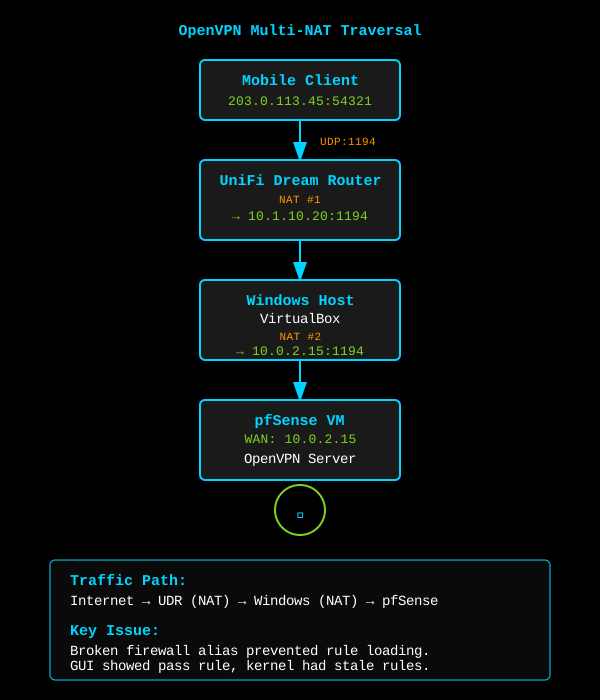
Successfully establishing OpenVPN connectivity through multiple NAT layers requires methodical troubleshooting and deep understanding of packet flow. This guide documents the complete process of connecting to a VirtualBox pfSense lab from the internet, including the discovery and resolution of a silent firewall rule loading failure.
Environment:
- Client: Mobile Device (4G/5G)
- Edge Router: UniFi Dream Router (UDR)
- Host: Windows 10/11 (Physical IP:
10.1.10.20) - Hypervisor: VirtualBox (NAT Mode)
- Guest: pfSense (WAN IP:
10.0.2.15)
Traffic Path: Internet → UDR → Windows Host → VirtualBox → pfSense
Initial Problem
Symptom: TLS Error: TLS key negotiation failed to occur within 60 seconds
Meaning: The OpenVPN client was sending packets, but receiving no response. Traffic was being dropped somewhere in the multi-layered NAT chain before reaching the pfSense OpenVPN server.
Diagnostic Methodology
Layer 1: Host and Hypervisor Verification
Windows Firewall Check:
Get-NetFirewallRule -DisplayName "*OpenVPN*" | Select-Object DisplayName,Enabled,Direction,Action
Verified Configuration:
- Rule Name:
OpenVPN UDP 1194 Inbound - Status: Enabled/Allowed
- Protocol: UDP
- Port: 1194
VirtualBox NAT Port Forwarding:
- Protocol: UDP
- Host IP:
0.0.0.0(All Interfaces) - Host Port: 1194
- Guest IP:
10.0.2.15 - Guest Port: 1194
Layer 2: pfSense “Invisible” Blockers
Issue Identified: VirtualBox assigns a private RFC1918 address (10.0.2.15) to the pfSense WAN interface. By default, pfSense blocks traffic from private networks on WAN interfaces.
Resolution:
Navigate to Interfaces > WAN and disable:
- Block private networks and loopback addresses
- Block bogon networks
Command Verification:
grep "block drop in" /tmp/rules.debug
This command confirms whether the private network blocking rules are present in the compiled ruleset.
Layer 3: The Silent Failure (Root Cause)
Despite correct firewall rules in the GUI, traffic continued hitting the Default Deny rule.
Firewall Log Evidence:
Jan 04 14:15:23 pfsense filterlog: 5,,,1000000103,em0,match,block,in,4,0x0,,64,0,0,DF,17,udp,78,203.0.113.45,10.0.2.15,54321,1194,58
Rule ID: 1000000103 (Default Deny Rule)
Investigation Commands:
- Check if rules are loaded in kernel:
pfctl -sr | grep 1194
Result: No output (Rule not present in active ruleset)
- Attempt emergency rule injection:
easyrule pass wan udp any any 1194
Result: Command returned “Success” but rule still didn’t appear in pfctl -sr
- Force manual rule reload:
pfctl -f /tmp/rules.debug
Result:
/tmp/rules.debug:XX: syntax error: macro 'TAILSCALE__NETWORK' not defined
Discovery: A broken firewall alias related to Tailscale was preventing the entire firewall ruleset from loading. pfSense was operating on stale rules from before the alias was deleted.
Resolution:
- Navigate to Firewall > Rules > WAN
- Locate rules referencing the broken
TAILSCALE__NETWORKalias - Edit each rule and change Source/Destination from alias to manual CIDR:
100.64.0.0/10 - Apply changes
- Verify rule reload:
pfctl -f /tmp/rules.debug
pfctl -sr | grep 1194
Success Indicator: No syntax errors and OpenVPN rule now appears in active ruleset.
Network Configuration
UniFi Dream Router (UDR) Port Forwarding
Path: Settings > Security > Port Forwarding
Configuration:
- Name:
OpenVPN Lab Access - External Port: 1194
- Internal Port: 1194
- Protocol: UDP
- Forward IP:
10.1.10.20(Windows Host) - Enabled: Yes
Note: The UDR cannot route directly to 10.0.2.15 (VM internal NAT network). Traffic must be forwarded to the Windows host, which then forwards to VirtualBox NAT.
OpenVPN Client Configuration
Critical Change: Replace local IP with DDNS hostname for internet accessibility.
Before:
remote 10.1.10.20 1194
After:
remote my-lab.ddns.net 1194
Additional Client Settings:
client
dev tun
proto udp
remote my-lab.ddns.net 1194
resolv-retry infinite
nobind
persist-key
persist-tun
remote-cert-tls server
cipher AES-256-GCM
auth SHA256
verb 3
Critical Commands Reference
Firewall Rule Verification
Check active firewall rules in kernel:
pfctl -sr | grep <port>
Monitor firewall decisions in real-time:
clog -f /var/log/filter.log
Force firewall rule reload:
pfctl -f /tmp/rules.debug
Trigger PHP configuration sync:
/etc/rc.filter_configure_sync
Emergency Rule Injection
Create temporary pass rule (survives until reboot):
easyrule pass <interface> <protocol> <source> <destination> <port>
Example:
easyrule pass wan udp any any 1194
Warning: This bypasses the GUI. Use only for emergency troubleshooting.
Diagnostic Commands
Verify private network blocking is disabled:
grep "block drop in" /tmp/rules.debug | grep -E "(10\.|172\.(1[6-9]|2[0-9]|3[01])\.|192\.168\.)"
Check for broken aliases in ruleset:
pfctl -f /tmp/rules.debug 2>&1 | grep "macro.*not defined"
View OpenVPN server status:
/usr/local/sbin/openvpn --status /var/etc/openvpn/server1.status 1
Packet Flow Analysis
Successful Connection Flow
[Mobile Client]
    |
    | UDP:1194 (Source: Random High Port)
    v
[Internet]
    |
    | Destination: <Public IP>:1194
    v
[UniFi Dream Router]
    |
    | NAT Translation: <Public IP>:1194 → 10.1.10.20:1194
    v
[Windows Host:10.1.10.20]
    |
    | Windows Firewall: Allow UDP:1194
    v
[VirtualBox NAT]
    |
    | Port Forward: Host:1194 → Guest:10.0.2.15:1194
    v
[pfSense WAN:10.0.2.15]
    |
    | Firewall Rule: Pass UDP:1194
    v
[OpenVPN Server]
    |
    | TLS Handshake Success
    v
[VPN Tunnel Established]
Blocked Traffic Flow (Before Fix)
[pfSense WAN:10.0.2.15]
    |
    | Firewall Rules: <GUI shows pass rule>
    v
[Kernel Ruleset]
    |
    | Actual Rules: <Stale - broken alias prevented reload>
    v
[Default Deny Rule:1000000103]
    |
    | Action: Block
    v
[Packet Dropped - No Response to Client]
Verification and Testing
Test 1: Rule Presence in Kernel
pfctl -sr | grep 1194
Expected Output:
pass in quick on em0 inet proto udp from any to any port = 1194 flags S/SA keep state
Test 2: Live Traffic Monitoring
tcpdump -i em0 -n port 1194
Expected Output:
14:30:15.123456 IP 203.0.113.45.54321 > 10.0.2.15.1194: UDP, length 58
14:30:15.124567 IP 10.0.2.15.1194 > 203.0.113.45.54321: UDP, length 62
Test 3: OpenVPN Connection
From Mobile Client:
openvpn --config client.ovpn --verb 4
Expected Output:
TLS: Initial packet from [AF_INET]203.0.113.45:54321
VERIFY OK: depth=1, CN=pfSense CA
VERIFY OK: depth=0, CN=pfSense Server
Control Channel: TLSv1.3, cipher TLSv1.3 TLS_AES_256_GCM_SHA384
Initialization Sequence Completed
Security Considerations
Hardening Recommendations
1. Restrict Source IPs (If Static Public IP Available):
Firewall > Rules > WAN > OpenVPN Rule
Source: <Your Static IP>/32
2. Enable TLS Authentication:
openvpn --genkey secret ta.key
Add to server and client config:
tls-auth ta.key 0  # Server
tls-auth ta.key 1  # Client
3. Implement Certificate Revocation:
openssl ca -revoke client-cert.pem -config openssl.cnf
openssl ca -gencrl -out crl.pem -config openssl.cnf
4. Monitor Failed Authentication Attempts:
grep "TLS Error" /var/log/openvpn.log | tail -20
Lessons Learned
1. GUI is Not Always Truth:
The pfSense GUI may show correctly configured rules while the kernel operates on stale rulesets due to silent configuration errors.
2. Broken Aliases Fail Silently:
Deleted or misconfigured firewall aliases can prevent the entire ruleset from loading, with no visible error in the GUI.
3. Kernel Commands are Essential:
Direct kernel inspection using pfctl -sr is critical for verifying active firewall rules.
4. Multi-Layer NAT Requires Methodical Debugging:
Each layer (UDR, Windows Host, VirtualBox, pfSense) must be verified independently using packet captures and logs.
5. Private Network Blocking is Often Overlooked:
VirtualBox’s default NAT assignment (10.0.2.0/24) triggers pfSense’s private network blocking on WAN interfaces.
Troubleshooting Decision Tree
OpenVPN Connection Fails
    |
    +-- Check Windows Firewall
    |       |
    |       +-- Blocked? → Create allow rule
    |       +-- Allowed? → Continue
    |
    +-- Check VirtualBox Port Forwarding
    |       |
    |       +-- Missing? → Add UDP 1194 forward
    |       +-- Present? → Continue
    |
    +-- Check pfSense WAN Blocks
    |       |
    |       +-- Private networks blocked? → Disable
    |       +-- Disabled? → Continue
    |
    +-- Check pfSense Firewall Rules
    |       |
    |       +-- GUI shows rule? → Check kernel with pfctl -sr
    |               |
    |               +-- Rule in kernel? → Check logs for blocks
    |               +-- No rule in kernel? → Force reload with pfctl -f
    |                       |
    |                       +-- Syntax error? → Find broken alias
    |                       +-- No error? → Check rule specificity
    |
    +-- Check Client Configuration
            |
            +-- Using local IP? → Change to DDNS/Public IP
            +-- Using DDNS? → Verify DNS resolution
Conclusion
Successfully establishing OpenVPN connectivity through four layers of NAT required:
- Systematic verification of each network layer
- Kernel-level diagnostic commands to bypass GUI limitations
- Root cause analysis to identify silent configuration failures
- Proper NAT chain configuration from internet to internal VM
The discovery of the broken alias causing silent firewall rule loading failures highlights the importance of direct kernel inspection in complex networking environments.
Final Traffic Path:Internet → UDR (10.1.10.20:1194) → Windows Host → VirtualBox NAT (10.0.2.15:1194) → pfSense OpenVPN Server
Key Takeaway: When firewall rules appear correct in the GUI but don’t work, always verify the active kernel ruleset with pfctl -sr and force a configuration reload with pfctl -f /tmp/rules.debug to expose hidden errors.
References
- pfSense Documentation: Firewall Rules
- OpenVPN Reference Manual
- VirtualBox Network Settings
- pfSense Forum: Silent Rule Loading Failures
Author: Andrew Jones
Date: January 04, 2026
Lab Environment: OrionAD.lab
Related Posts: PKI & X.509 Certificate Management, UniFi Zone-Based Firewall Architecture